


- White Dots On iPad Screen
- Dead Or Stuck Pixels
- Physical Or Pressure Damage
- Backlight Bleeding Or Separation
- Water Or Moisture Damage
- Internal Dust Or Debris
- Battery Swelling
- Software Glitches
- Screen Burn-In / Prolonged Static Content
- Overheating And Hardware Problems
- What Different White Dot Patterns Can Mean
- How To Fix White Dots On An iPad Screen
- Restart Or Force Restart
- Update iPadOS
- Check And Clean The Screen
- Check For Physical Damage
- Reduce White Point
- Factory Reset
- Professional Repair / Apple Support
- Advanced / DIY Hardware Fixes
- LCD Vs. OLED: Why The Cause Can Differ
- iPad Model-Specific White Spot Problems
- Why Drawing And Note-Taking Can Cause Pressure Spots
- Cheaper Alternatives To Full Screen Replacement
- How To Prevent White Dots On An iPad
- FAQs
From experience, white dots on iPad screen usually need careful observation before repair. Tiny bright spots, stuck pixels, moisture, impact, or overheating can point toward different causes, so diagnosis should come first.
I compare the iPad display, screen artifacts, physical pressure, debris, and battery swelling before deciding whether the issue involves software or the physical display. The screenshot test can provide another useful clue.
In practice, bright spots, bright patches, dead pixels, and backlight problems should not automatically be treated as serious hardware failures. Software glitches, manufacturing issues, and other temporary causes can produce similar symptoms.
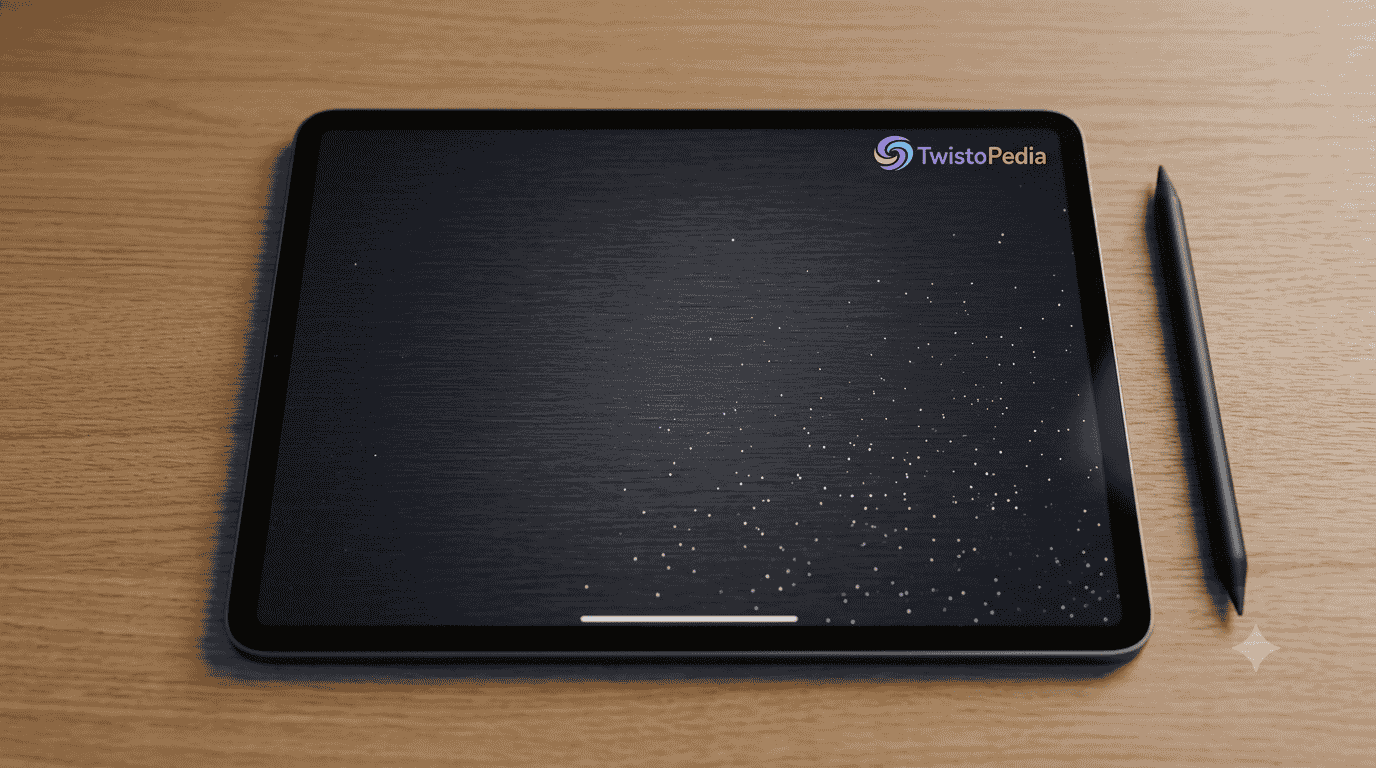
White Dots On iPad Screen
White dots, white spots, and bright patches can appear for several reasons, ranging from individual pixels to problems affecting the complete display panel. Identifying the pattern makes troubleshooting much more accurate.
A display problem may involve a stuck pixel, dead pixel, backlight, or internal contamination. Meanwhile, moisture, debris, overheating, and impact can create visible screen damage requiring different repair approaches.
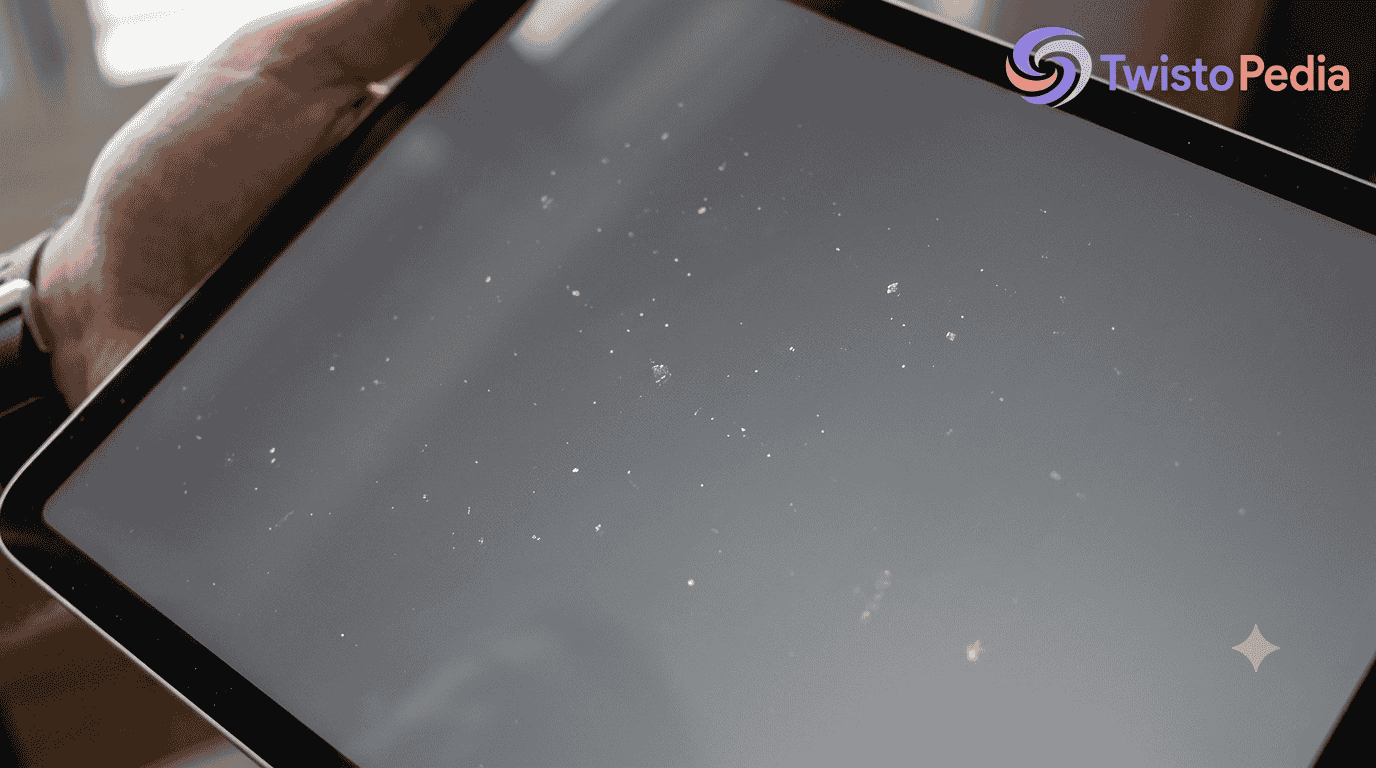
Before replacing anything, check iPadOS, restart the device, inspect the screen, and perform basic troubleshooting. If the spot remains unchanged, a hardware issue becomes increasingly likely.
What Are The White Dots On An iPad Screen?
White dots are small bright areas that appear different from the surrounding screen. Some are tiny and sharply defined, while others become blurry patches because multiple display layers are affected.
A bright point can involve an individual pixel, while larger bright areas may indicate pressure, backlight, moisture, or damaged internal components. Location and shape therefore provide useful diagnostic information.
When a dot stays in exactly one fixed location, the possibility of a pixel problem increases. Larger persistent dots or patches deserve closer inspection for physical display damage.
Why Is There A White Dot On My iPad Screen?
A white dot can develop after drops, pressure from tight bags, or repeated palm pressure during drawing. LCD models may also develop backlight bleeding, especially when internal layers become damaged.
Other causes include water damage, debris, dust, adhesive fragments, and problems following screen replacement. Battery swelling can create internal pressure, while software glitches, apps, and iPadOS may produce temporary artifacts.
High brightness, prolonged static images, and overheating can also affect display behavior. Stuck pixels, pressure damage, and backlight separation therefore need to be considered before choosing repair.
Dead Or Stuck Pixels
Dead pixels usually remain dark because the individual pixel is no longer functioning correctly. An illuminated pixel, however, may remain bright and appear as a persistent white point on the display.
Stuck pixels can display a fixed color instead of changing with surrounding content. A white pixel is particularly noticeable against dark backgrounds and can remain visible during normal device use.
Pixel problems may result from a manufacturing defect, normal aging, or physical display damage. A persistent pixel generally indicates a hardware-level screen problem rather than ordinary software behavior.
Physical Or Pressure Damage
Physical damage can occur when an iPad receives drops, impacts, or concentrated force from heavy objects. Carrying it inside tight bags can also place unexpected pressure on the display.
Repeated pressure against internal display layers may create bright patches without cracking the glass. Palm pressure from drawing or writing can contribute when the same area receives force repeatedly.
I pay particular attention to the location of pressure marks because screen stress often produces a pattern different from individual pixel failures. Visible display damage after an impact deserves professional inspection.
Backlight Bleeding Or Separation
Backlight bleeding occurs when illumination becomes visible where it should normally remain evenly distributed. On an LCD, damage to the backlight layer can make certain areas appear unusually bright.
Backlight separation can occur when internal display layers shift or become damaged. This may create bright patches, uneven screen brightness, or noticeable light leakage around particular areas.
A damaged LCD display should not be treated like a simple pixel fault. If physical damage produces persistent brightness irregularities, professional assessment can determine whether repair is practical.
Water Or Moisture Damage
Water damage can affect the display even when the iPad continues functioning normally. Moisture entering the device may interact with the display assembly and create unusual visual patterns.
A liquid exposure can produce white patches or irregular patches when internal layers are affected. These marks may spread or change appearance as moisture reaches additional components.
Because liquid exposure can cause broader display damage, avoid pressing the affected area repeatedly. A persistent screen problem following moisture exposure should receive professional inspection.
Internal Dust Or Debris
Internal dust can become visible when particles are trapped beneath display components. Debris may also enter during manufacturing, repair, or screen replacement, producing small localized bright spots.
A tiny piece of material or adhesive fragments can remain between layers after a repair. These trapped particles may look similar to pixel failures when viewed through the glass.
If the display assembly was recently opened, contamination becomes a stronger possibility. Professional repair can determine whether the display assembly contains internal debris that needs removal.
Battery Swelling
Battery swelling deserves particular attention because an expanding battery can push against the display assembly from underneath. That pressure may gradually change the screen’s appearance.
The battery can create internal pressure that produces white spots or localized distortion. Unlike a simple software artifact, the affected area may become more noticeable as swelling progresses.
If pressure appears together with lifting, separation, or screen damage, avoid squeezing the device. A swollen battery is an internal hardware concern requiring qualified service rather than ordinary troubleshooting.
Software Glitches
Software glitches can occasionally create temporary display abnormalities that resemble physical white dots. The problem may appear after opening certain apps, installing updates, or experiencing an unexpected system error.
When software causes the issue, a restart or update may restore normal behavior. This makes software troubleshooting an appropriate first step before considering expensive hardware work.
However, persistent visual artifacts that remain after restarting and updating iPadOS deserve further investigation. A temporary problem should change or disappear when the underlying software condition is resolved.
Screen Burn-In / Prolonged Static Content
Screen burn-in and ghosting describe persistent visual remnants associated with prolonged display use. They may become more noticeable when the screen repeatedly shows the same static images.
Extended prolonged exposure combined with high brightness can make persistent artifacts easier to notice. Reducing brightness and varying displayed content can reduce unnecessary stress on the display.
Using dark mode where appropriate can also make certain bright elements less prominent. However, genuine physical display damage cannot be permanently repaired through brightness adjustments alone.
Overheating And Hardware Problems
Overheating can influence display behavior because excessive heat affects internal components and surrounding materials. Persistent brightness changes may therefore deserve attention when they appear alongside unusual device temperatures.
Hardware faults can produce display abnormalities, especially when persistent dots remain in a fixed location regardless of the content being displayed.
Inspection of the internal hardware and display components may be necessary when software troubleshooting fails. A clearly hardware-related issue should not be treated indefinitely as a software problem.
The Screenshot Test — Software Or Hardware?
The screenshot test is one of the simplest ways to investigate a display anomaly. Capture the screen while the white dot is visible, then inspect the image elsewhere.
Open the screenshot in Photos or view it on another device. If the mark appears inside the captured image, software or rendered content may be involved.
If the screenshot looks normal but the mark remains visible on the physical display, the problem is more likely hardware. This distinction makes troubleshooting considerably more focused.
What Different White Dot Patterns Can Mean
A white dot patterns assessment starts with size and location. A small fixed bright dot often suggests a stuck pixel, while multiple spots may indicate broader display damage.
A large oval patch or irregular bright patch can point toward backlight bleeding, LCD layers, pressure, or light leakage. Blurry patches may also suggest moisture-related problems.
Trapped dust, adhesive, and debris can create localized marks after repair. Battery pressure, internal pressure, and internal component damage can produce different patterns requiring careful physical inspection.
How To Fix White Dots On An iPad Screen
Start by identifying whether the issue is software-related or physical. Basic troubleshooting, a restart, and software updates can address temporary problems without opening the device.
For external contamination, screen cleaning with a microfiber cloth can remove dirt, residue, and surface debris. Avoid aggressive pressure because it can worsen an existing physical problem.
For persistent physical damage, use professional assessment. Reduce White Point may provide a temporary workaround, while a factory reset should only follow a proper backup when software remains suspect.
Restart Or Force Restart
A normal restart can clear a temporary software glitch and restore ordinary display behavior. It is a simple first step when the iPad suddenly develops a new display artifact.
If the device does not respond normally, a force restart can provide another troubleshooting option. This process addresses temporary system behavior rather than repairing physical screen damage.
After restarting, inspect the screen again and compare the display with its previous appearance. If the display issue remains unchanged, investigate hardware causes next.
Update iPadOS
An update iPadOS process can correct software bugs affecting display rendering. Before attempting hardware repair, checking for a current software update is a sensible troubleshooting step.
The iPad operating system controls how applications and visual elements are rendered. A software defect can therefore create temporary display-related software problems that resemble physical artifacts.
If updating resolves the issue, hardware intervention may not be necessary. If the same display artifact remains afterward, continue with physical inspection and screenshot testing.
Check And Clean The Screen
Begin with a careful screen inspection before assuming the display itself has failed. Surface contamination can sometimes look like a bright spot when viewed under strong lighting.
Use a microfiber cloth and gentle cleaning to remove dirt or residue from the display surface. Avoid liquids entering openings and never apply excessive force.
If cleaning changes nothing, debris may be located internally rather than externally. At that stage, opening the device without experience can create additional damage.
Check For Physical Damage
Look closely for physical damage, including marks associated with drops, impacts, or concentrated pressure. Even when the glass looks intact, internal display components can still be affected.
Persistent white dots combined with visible screen damage increase the likelihood of a hardware problem. The timing of the issue can also reveal whether an impact preceded it.
A professional diagnosis is useful when symptoms remain unclear. Technicians can inspect the display assembly without relying only on external appearance or software troubleshooting.
Reduce White Point
Reduce White Point is an accessibility feature that lowers the intensity of bright colors. It can make uncomfortable or unusually bright areas less noticeable during everyday use.
This setting may function as a temporary workaround for certain display artifacts, especially when burn-in or excessive brightness makes them distracting.
It does not repair hardware damage or restore defective pixels. If the underlying display problem remains visible after changing brightness, further diagnosis is still appropriate.
Factory Reset
A factory reset should generally be considered a last software troubleshooting step, not an automatic solution for every white spot.
Before using it, create a reliable data backup because resetting the iPad can erase personal information and settings from the device.
If the reset fails to remove the display issue, the possibility of a physical software problem becomes less likely. At that stage, professional hardware evaluation makes more sense.
Professional Repair / Apple Support
Persistent display problems may justify professional repair, especially when symptoms suggest damage to the display, battery, or another internal component.
Technical support can help with diagnosis and determine whether the backlight, display assembly, or battery requires attention. This is particularly important when symptoms follow impact or swelling.
A proper diagnosis is preferable to replacing parts based only on appearance. For persistent white dots, professional inspection can identify the actual source before repair begins.
Advanced / DIY Hardware Fixes
Some repair guides discuss DIY hardware methods such as applying gentle pressure around a suspected stuck pixel. I would treat this approach cautiously because excessive force can cause additional screen damage.
Opening the device involves delicate internal hardware and the display assembly. Improper display manipulation can damage connectors, layers, or other components that were previously working.
For complex hardware repair, qualified technicians are safer. Component-level repair may sometimes be possible, but persistent damage should be evaluated professionally rather than repeatedly experimenting at home.
LCD Vs. OLED: Why The Cause Can Differ
An LCD relies on a backlight, so backlight separation and light leakage can create visible bright patches. These characteristics make certain white-spot patterns easier to associate with display-layer problems.
An OLED display works differently because individual pixels generate their own light. A persistent bright point may therefore involve pixel hardware or other panel hardware rather than traditional backlight behavior.
Understanding the display technology helps determine the likely repair path. Pressure, pixel failures, and hardware problems can occur on either technology, but their physical causes differ.
iPad Model-Specific White Spot Problems
Certain iPad models have been associated with recurring display complaints. The iPad Air 3, for example, has been discussed in connection with a bright spot near the home button.
The iPad Pro 10.5-inch from 2017 is another model discussed around pressure-related display concerns, particularly among drawing users and people performing intensive drawing.
These examples do not mean every spot indicates a design issue. Older iPad generations can experience ordinary damage too, so model-specific information should support diagnosis rather than replace it.
Why Drawing And Note-Taking Can Cause Pressure Spots
During extended drawing or note-taking, the same area may receive repeated pressure from a hand or stylus. Concentrated force can place stress on display components beneath the glass.
Writing with sustained palm contact can contribute when pressure remains concentrated in one region. Internal components may experience additional heat during long sessions.
Changing hand position, taking regular breaks, and distributing pressure can reduce repeated stress. These habits cannot reverse existing damage, but they may help prevent additional screen damage.
Cheaper Alternatives To Full Screen Replacement
A full screen replacement is not always the first solution. Depending on the cause, a technician may identify a repairable backlight, battery issue, or localized internal problem.
If trapped debris is responsible, cleaning or partial repair may cost less than replacing the complete display assembly. A component-level repair may also be possible in some cases.
Temporary software adjustments can reduce the visibility of certain artifacts while you evaluate repair options. Comparing the repair cost with the device’s age and condition is sensible.
How To Prevent White Dots On An iPad
To prevent white dots, protect the iPad from concentrated force, moisture, and unnecessary display stress. A suitable protective case and basic screen protection can reduce certain risks.
Avoid carrying the device in an overfilled bag or placing heavy objects directly against it. Keep brightness reasonable and avoid extended exposure to unchanged static images.
Regular screen cleaning, careful handling, and breaks during drawing can help. Limiting palm pressure, protecting against liquid exposure, and avoiding physical impacts also support long-term display protection.
FAQs
These FAQs address common concerns about white spots, pixel failures, software updates, and repair decisions. The most useful answers depend on whether the visible problem originates from software or hardware.
A screen protector may reduce some physical risks, but it cannot repair defective pixels. Similarly, an Apple diagnosis can help determine whether display repair is actually necessary.
Persistent symptoms should be assessed according to their behavior, location, and timing. Troubleshooting is useful first, but hardware damage requires a different response.
Will A Screen Protector Prevent White Dots?
A screen protector can provide some protection against scratches and certain forms of physical damage, but it cannot prevent every display failure or software-related artifact.
If white dots result from dead pixels, a protector will not restore those pixels. Existing display faults remain beneath the protective layer.
A protector can still support screen protection during everyday use. It should be viewed as preventative equipment rather than a treatment for existing display damage.
How Do I Know If The White Dots Are Dead Pixels?
White dots that remain visible in exactly the same position across different images may indicate dead pixels or stuck pixels. Their behavior is more useful than appearance alone.
Check whether the mark changes when the displayed content changes. A persistent point that remains fixed can indicate a physical pixel problem rather than software rendering.
If uncertainty remains, compare screenshots and inspect the iPad screen from different backgrounds. A technician can confirm whether the issue involves the display hardware.
Can A Software Update Fix White Dots?
A software update can resolve white dots when they result from a temporary software glitch or rendering problem. Updating iPadOS is therefore worth trying before assuming physical damage.
However, physically damaged pixels cannot be restored through software. Damage involving display layers or other hardware remains after an operating-system update.
If the spots persist after updating, consider professional screen repair only after confirming that the issue is actually hardware-related.
Should I Take My iPad To Apple For Diagnosis?
If an iPad develops persistent white dots that remain after basic troubleshooting, professional diagnosis becomes reasonable. A technician can inspect the display and identify possible hardware causes.
Start with simple checks before seeking service, particularly when no impact, liquid exposure, or swelling is present. Basic troubleshooting can sometimes resolve temporary display behavior.
When symptoms indicate a hardware-related problem, professional diagnosis and technical support are more appropriate than repeated software resets or uncertain DIY repairs.
Are White Dots Permanent?
Whether white dots are permanent depends entirely on their cause. Software-related artifacts may disappear after an update, restart, or other appropriate troubleshooting step.
Physical pixel damage, display-layer damage, moisture damage, and impact damage are more likely to remain until the affected hardware is repaired or replaced.
Some temporary artifacts can therefore disappear without repair, while a genuine hardware problem usually requires physical intervention. The pattern and persistence of the spot provide useful clues.