

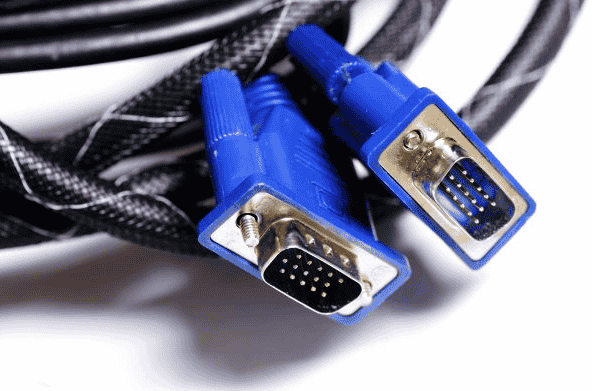
The most common faulty VGA cable symptoms are flickering images, snow-like noise, ghosting, a blurry or soft picture, and distorted colors. The screen may also shift color toward pink, green, or blue, fail to fill the monitor, or show a “No Signal” message with no display. Most of these trace to connector contact, cable quality, grounding, or long cable runs.
- Faulty VGA Cable Symptoms
- How to Identify Your VGA Problem
- Typical Symptoms of Long-Distance VGA Issues
- Cable Fault or Display Setting?
- What Causes VGA Signal Degradation?
- The Nature of VGA: Analog Has Limits
- Signal Loss Over Distance
- External Interference
- Internal Crosstalk
- Bandwidth Demand at Higher Resolutions
- Connector and Termination Issues
- Common VGA Cable Wear and Damage
- How to Fix VGA Cable Problems: Step-by-Step
- Step 1: Reseat and Tighten Both Connectors
- Step 2: Inspect the 15-Pin VGA Connector
- Step 3: Select the Right Input and Force Display Detection
- Step 4: Check for POST and Hardware Conflicts
- Step 5: Update or Reinstall Graphics Drivers
- Step 6: Set the Correct Resolution and Refresh Rate
- Step 7: Run the Monitor’s Auto Adjust
- How to Reduce VGA Interference
- Fixing Long-Distance VGA Problems
- Choose Better VGA Cables
- Replace Poor-Quality or Aging VGA Cables
- How Manufacturers Ensure Reliable VGA Cables
- Expert Tips from the Manufacturer
- Add a VGA Amplifier or Repeater
- Consider Signal Conversion
- Should You Upgrade from VGA?
- Where VGA Still Makes Sense Today
- FAQs
- How Long Can a VGA Cable Run Before Signal Degrades?
- Why Does My VGA Image Look Blurry Over Long Distances?
- Can a VGA Amplifier Improve Signal Quality?
- Does Cable Quality Affect VGA Performance Over Distance?
- Is It Better to Convert VGA to HDMI or Use a Long VGA Cable?
- Why Does My VGA Say “No Signal”?
- Can a Bad VGA Cable Cause Blurry Screen?
- Do VGA Cables Affect Resolution?
- Why Is My VGA Screen Blurry?
- Why Does My VGA Screen Show Snow or Noise?
- Why Is the VGA Display Missing One Color?
- Why Does VGA Flicker?
- Is VGA Still Worth Using?
In 2026, the Video Graphics Array standard is still in daily use. The blue 15-pin VGA connector remains on industrial PCs, DVR systems, projectors, older laptops, and desktop monitors in classrooms, offices, factories, and control rooms. Installers who maintain these legacy display environments usually give the same reason: simple compatibility. Legacy computer systems and industrial control systems were built around VGA, and replacing them costs far more than a new cable.
The catch is that VGA is a legacy analog connection. Analog video transmission carries the picture as a continuously varying analog signal. That makes it susceptible to interference and prone to VGA signal degradation as distance increases. Newer video interfaces, such as HDMI, DisplayPort, and USB-C video, use digital connections that either work cleanly or drop out completely. VGA fails gradually instead. It flickers, blurs, and drifts. That turns out to be useful, because the type of damage on screen hints at its cause.
Technicians who service these setups often find that VGA cables are the weakest link in the chain, more often than the PCs or monitors on either end. Searches for “VGA signal failure long distance” tend to follow whenever a school or plant extends an old run by a few meters, and image quality rarely survives that change.
This guide covers the technical causes behind poor VGA signal quality and field-tested fixes that users can try in minutes. It also explains how to diagnose VGA display problems that look like cable faults but actually come from display settings, and when it makes more sense to upgrade the connection. Observations from a cable assembly manufacturer and a VGA cable factory floor add practical detail on shielding and interference control. Those lessons matter in industrial environments and in education, where older monitors and legacy systems still need a clear, stable image every day.
Faulty VGA Cable Symptoms
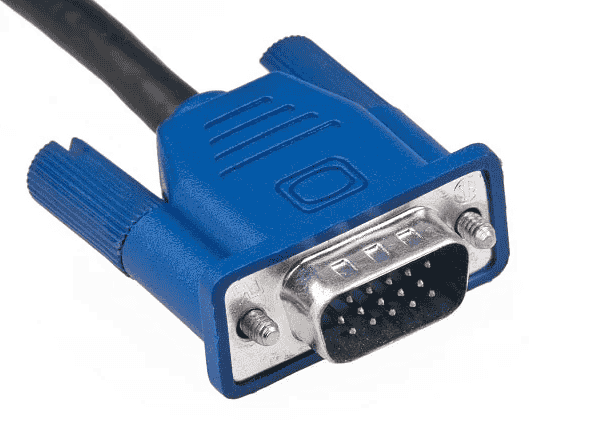
A failing VGA cable shows up in four main symptom groups: noise, ghosting and softness, color problems, and intermittent or total signal loss. Each group points to a different weak spot in the signal chain, so a careful look at the screen saves a lot of guesswork.
How to Identify Your VGA Problem
The fastest way to narrow down the problem is to match what you see on screen to its most likely root causes:
| What You See | Most Likely Cause |
| Snow dots, random noise, wavy lines | Electromagnetic interference, poor shielding, ground loop issues |
| Ghosting image, shadowing, blurry image | Long cable, low-quality cable, internal crosstalk |
| Pink/green tint, one color channel missing | Bent pin, loose pins, or a broken analog red, green, or blue line |
| Screen flicker, intermittent flicker, display unstable | Loose connector, intermittent connection, wrong refresh rate |
| Off-center image, stretched, partially cut off, shifted screen | Wrong resolution, wrong input timing, sync problems |
| Blank screen, no image, “No Signal on Monitor” | Total signal failure, wrong input, PC not detecting display |
One simple test separates hardware from software. Gently wiggle the cable at each end. If the image disappears when the cable is moved, the fault is physical, such as cable damage, frayed wires, or a loose connector. System settings are unlikely to be the cause in that case.
Typical Symptoms of Long-Distance VGA Issues
Long runs follow a recognizable pattern: the picture softens before it breaks. Technicians running cable through ceilings usually notice ghosting around text first. It looks like a faint shadowing to the right of each letter. Next comes a general loss of sharpness, a soft image, and faded colors.
A setup that looks fine at low resolution can fall apart at 1080p@60Hz. Higher resolutions and higher refresh rates push more high-frequency detail through the copper conductors, which shrinks the cable’s effective range. These resolution limitations and refresh rate limitations explain why longer runs handle a basic spreadsheet without complaint but produce ghost images once the desktop is set to full HD.
Cable Fault or Display Setting?
Not every bad picture is the cable’s fault. Sometimes the monitor powers on, but the screen stays black with a “No VGA Cable Detected” banner. That usually means the monitor isn’t receiving sync pulses. VGA carries horizontal sync and vertical sync on dedicated pins. If either one is lost, the monitor refuses to draw an image or shows a rolling picture with unstable flickering.
Field engineers often see this after hardware changes, such as a new graphics card, a docking station, or multi-monitor setups that push the VGA port to a secondary role. Digital interfaces negotiate the connection automatically, but VGA tolerates mismatches far less well. Artifacts, lines on screen, and inaccurate colors can also come from drivers. That’s why experienced techs try a second cable before blaming the monitor for the instability.
What Causes VGA Signal Degradation?
VGA signal degradation happens because video travels as an analog electrical signal, and VGA has no built-in mechanism to correct errors or rebuild a weakened signal. Every flaw the cable picks up reaches the display unchanged.
The Nature of VGA: Analog Has Limits
HDMI and DisplayPort send digital data, so small signal flaws don’t affect the final pixels. VGA is different. Its image quality depends entirely on the physical condition of the cable and how far the signal travels. As distance increases, the signal degrades gradually rather than cutting out all at once. That’s why VGA problems are usually a matter of degree. A picture that’s slightly soft at 3 meters may be unusable at 20.
Signal Loss Over Distance
VGA signals lose strength over distance because copper conductors resist and load down the electrical signals passing through them. The fine detail weakens first. On long runs, this shows up as blurred images and reduced contrast well before the picture disappears completely.
Installers often describe it as the image “washing out.” Edges stay roughly in place, but they lose their sharpness.
External Interference
Electromagnetic interference from nearby power cables, lighting systems, and industrial equipment can leak into VGA cables with poor shielding. It appears as noise, shimmer, or slow-moving bars. Analog video is highly sensitive because any stray voltage on the line becomes part of the picture.
A cable that performs perfectly on an office desk can look noisy on a factory floor. The cable hasn’t changed, but the electrical environment around it has.
Internal Crosstalk
Internal crosstalk is interference between the cable’s own RGB signal paths. It causes color bleeding and ghosting effects on screen. Good cables wrap each color line in its own small coaxial shield. Low-quality VGA cables often skip this step, so the red, green, and blue lines leak into one another along the way.
On a white background, you’ll see this as faint colored outlines trailing behind dark text.
Bandwidth Demand at Higher Resolutions
Higher resolutions need more signal bandwidth. As a result, a VGA cable that looks clean at low resolution can blur or fail completely at 1080p over the same distance.
The numbers explain why. Standard 1024×768 at 60 Hz uses a pixel clock of about 65 MHz. 1920×1080 at 60 Hz needs about 148.5 MHz, more than double. The cable’s losses grow with frequency, so higher resolutions hit the cable’s limits much sooner.
Connector and Termination Issues
Weak connections at the plug can cause problems that look like a bad cable. VGA lines are designed for 75-ohm impedance. Improper impedance matching makes the line reflect signals back toward the source, which creates faint echo images.
Loose connectors and poor pin alignment cause image distortion no matter how short the distance is. Technicians often see a brand-new 1-meter cable produce ghosting simply because its molded plug has misaligned contacts.
Common VGA Cable Wear and Damage
Most VGA cables still in service in 2026 are several years old, and age shows up in predictable ways:
- Bent Pins and Loose Pins: The small pins bend easily during improper handling or repeated unplugging/replugging. A bent pin on the analog red, green, or blue line causes red/green/blue color loss. A missing blue line, for example, turns white areas yellow.
- Oxidation: Contacts on the plug and port tarnish over time, especially in humid spaces. This produces an intermittent display that comes and goes.
- Physical Wear and Frayed Wires: Frequent use and tight bends behind desks break internal strands. The result is intermittent signal failure that worsens over weeks.
- Low-Quality Cable: Thin wiring and weak shielding let interference show up as flickering and distorted colors, along with general color distortion across the screen.
Analog signals don’t produce error messages. The PC keeps sending, the VGA cable keeps degrading, and the picture simply gets worse.
How to Fix VGA Cable Problems: Step-by-Step
Most VGA faults can be narrowed down with a 5-minute routine: reseat and tighten both ends, inspect the pins, and test another VGA cable. You won’t need special tools, just good lighting and a little patience.
Step 1: Reseat and Tighten Both Connectors
Reseating the cable fixes more VGA complaints than any other step, according to technicians who handle these service calls. Follow this order:
- Power Off Everything: Power off the PC and monitor, unplug the power cords, and wait 30-60 seconds to reset both devices.
- Disconnect Cleanly: Loosen the thumbscrews and remove the blue D-sub 15-pin plug from the VGA output on the graphics card and the VGA input on the monitor.
- Inspect and Clean: Look for bent pins, broken pins, or missing pins. Clean the ports with compressed air or a soft brush, and avoid metal tools.
- Reconnect in Order: Power on the monitor first, then start the PC.
- Check the Input: Use the monitor buttons/menu to switch the monitor input source to VGA. Many monitors default to HDMI.
- Test for Movement: Gently rock the connector. Any looseness or flicker points to the plug.
- Swap and Compare: Swap ends, then try a known-working VGA cable. A shorter cable also helps rule out length-related signal degradation.
VGA connectors are sturdy but not indestructible. Most failures here come from plugs that were never fully seated in the first place.
A VGA plug held only by friction will gradually work loose. Even slight looseness is enough to cause rolling or monitor flicker. Tighten both screws evenly by hand.
Each connector has two side screws that keep the cable plug in firm contact with the device port. Insert the plug straight, without excessive force, then reconnect both ends firmly. Don’t overtighten, because that can strip the threads or damage the port.
A loose connector often disrupts the synchronization signals first, which is why the symptom is usually flickering rather than color loss. If the image changes when the cable is moved, or the screen flickers whenever the cable is touched even after tightening, the problem is inside the cable. Internal cable conductors are likely broken, and replacing the cable is the only real fix.
Step 2: Inspect the 15-Pin VGA Connector
A standard VGA connector has 15 pins arranged in three rows. A single bent, missing, or oxidized pin can make the display lose color or drop the picture entirely. Each pin has a specific job:
| Pin(s) | Carries | Symptom If Damaged |
| 1 | Red | Cyan tint (red missing) |
| 2 | Green | Magenta or pink tint (green missing) |
| 3 | Blue | Yellow tint (blue missing) |
| 13 | Horizontal sync | No display, torn or rolling image |
| 14 | Vertical sync | Vertical rolling, no display |
| 12, 15 | DDC data/clock | Missing resolution options, “generic monitor” |
| 5–8, 10 | Grounds | Random noise, shimmer, dim image |
This table helps diagnose a missing RGB channel or color distortion quickly. A damaged sync pin almost always means no display at all, while a weak ground shows up as random noise.
Some cables leave one position empty by design, often pin 9, so compare the cable with the device port before assuming damage. Slightly bent pins can be straightened with a small, non-metal tool. Recessed pins that have been pushed back into the housing won’t make contact and can’t be fixed reliably.
Clean worn or oxidized contacts with a dry, soft cloth or another electronics-safe cleaning method. If pins on the computer’s port are badly damaged, repairing them is a bench job. On the cable side, replacement is cheaper.
To confirm whether the failure is in the cable or the PC, test the same cable on another monitor. Reset the display resolution to a conservative setting such as 1024×768 or 1280×1024 before deeper diagnosis. If the PC also has HDMI or USB-C outputs, a quick test through one of those shows whether the graphics hardware itself is healthy and whether the image color returns to normal.
Step 3: Select the Right Input and Force Display Detection
When the PC boots, the lights are on, and the fans spin, but the VGA monitor stays blank, Windows may not be sending a signal to that output. Forcing detection usually fixes it.
- Cycle Projection Modes: Press Windows key + P and cycle modes: PC screen only, Duplicate, Extend, and Second screen only. This step fixes most laptop setups with projectors.
- Use Detect: Open Display settings, scroll to Multiple displays, and click Detect.
- Try Safe Mode: If the result is still a blank screen, hold Shift during restart and boot into Safe Mode through Troubleshoot > Advanced options > Startup Settings. If the display works there, driver conflicts are likely. Older systems may use F8 at startup instead.
Step 4: Check for POST and Hardware Conflicts
If the monitor shows nothing even before Windows loads, the fault is usually a hardware conflict or a POST problem, not the cable. A display connected during startup should show the manufacturer logo or BIOS screen. If it doesn’t, look at the PC itself.
Field technicians check these points, in this order:
- Use the Right Port: When a discrete GPU is installed, the motherboard port usually goes dead, because integrated graphics turn off automatically. This is one of the most common no-display calls technicians handle.
- Check the GPU’s Outputs: Many modern GPUs have dropped VGA entirely and offer only HDMI and DP. A passive VGA adapter on these cards often shows nothing.
- Reseat RAM and Loose Components: Memory that isn’t fully seated can stop POST completely. If the fans spin but the PC won’t boot to a picture, power down, reseat RAM, and press the graphics card firmly into its slot.
- Listen for Beep Codes: A VGA POST fail often triggers a specific beep pattern. Check the motherboard manual to see what each pattern means.
- Try a Different Output: Test HDMI or DP on the same machine. If those work, the VGA path or its settings are at fault.
- Test on Another PC: Connect the monitor and cable to another PC. A working picture there clears both of them and points back to the original computer’s hardware.
Step 5: Update or Reinstall Graphics Drivers
Outdated or corrupted drivers can disable the VGA output or limit resolution options. Updating or reinstalling the graphics driver is the next logical step.
- Right-click Start and open Device Manager.
- Expand Display adapters, right-click your integrated graphics or graphics card, and choose Update driver, then Search automatically.
- If nothing changes, uninstall the driver, restart, and install a fresh version from the manufacturer’s site: Intel, AMD, or NVIDIA.
Windows updates sometimes replace a working vendor driver with a generic one, which can quietly limit VGA modes. Support technicians rarely need a full Windows reinstall to fix this. A clean driver install almost always does the job.
Step 6: Set the Correct Resolution and Refresh Rate
Setting the PC’s output to the monitor’s native resolution and a supported refresh rate, usually 60Hz, fixes most cases of soft text, black borders, and flickering. Incorrect display settings mimic hardware faults surprisingly well.
In Windows, check resolution under Settings > System > Display. Then open Settings > System > Display > Advanced display (older builds call this Advanced display settings) to see the current resolution and refresh rate. The refresh rate is how many times per second the display updates.
Common native resolutions for VGA-era panels include:
| Native Resolution | Typical Panel |
| 1024×768 | 15″ 4:3 office and older VGA monitors |
| 1280×1024 | 17–19″ 5:4 desktop monitors |
| 1366×768 | Budget widescreen monitors, many projectors |
| 1600×900 | 20″ widescreen monitors |
| 1920×1080 | 21–24″ full HD monitors |
Some older units also accept 75Hz, but unsupported combinations can cause a black screen or incomplete screen coverage. If the screen goes black after a change, wait 15 seconds for Windows to revert, or reconnect the monitor. If the right resolution doesn’t appear in the list, the graphics driver needs attention. A driver update or reinstall is covered in Step 3 below.
Reduce Resolution or Refresh Rate on Long Runs
Over longer distances, lowering the output resolution reduces bandwidth demand and can restore acceptable image quality. Dropping from 1920×1080 to 1600×900 often removes ghosting and image instability on a 15-meter run.
The trade-off is that non-native resolutions look slightly soft on an LCD panel. Many integrators accept that compromise, because lower resolutions with a stable picture are better than a sharp image that flickers.
Step 7: Run the Monitor’s Auto Adjust
Running Auto Adjust makes an LCD monitor recalibrate how it samples the analog VGA input. This often fixes a shifted, shimmering, or slightly ghosted image in several seconds.
An LCD has to sample the analog signal at exactly the right clock and phase. A wrong clock produces vertical bands across the screen. A wrong phase makes text look fuzzy or the picture appear distorted, sometimes with fine flickering.
The setting goes by different names: Auto, Auto Adjust, Auto Setup, Auto Adjustment, or Auto Calibration. It usually sits in the on-screen display menu under Image Setup. Run it at native resolution with a screen full of text, which gives the monitor plenty of edges to lock onto. If the result still looks off, adjust the clock, phase, position, and size parameters manually.
The option only appears when the input signal is analog, which is why many owners of VGA monitors never notice it exists.
How to Reduce VGA Interference
Keeping the VGA cable away from power lines and high-current devices is the cheapest way to reduce snow, waves, and jitter. In noisy environments, cable routing matters as much as the cable itself.
Improve Cable Routing
- Route Separately: Keep VGA away from AC power cords, extension cords, and power strips. Many installers treat this as the first troubleshooting step for visible interference.
- Cross, Don’t Parallel: If VGA must meet a power line, have the two cross at a right angle. Avoid running them in parallel or side by side.
- Avoid Tight Bundles: Cables bundled tightly with power lines under tables in meeting rooms and classrooms are a common cause of interference.
- Watch the Neighbors: Phone chargers, speakers, fluorescent lighting, motors, and heavy electrical equipment in industrial environments all radiate electromagnetic noise.
- Shorten Cable Length: Extra cable coiled behind a desk still picks up noise, so use only the length you need.
Match the Symptom to the Fix
Analog transmission can’t filter out electromagnetic interference once it enters the cable, so prevention is everything. Match the symptom to the fix:
| Symptom | Practical Fix |
| Snow, fine lines, distortion | Higher-quality shielded cable, ferrite bead near each end |
| Slow horizontal bars (ground loop hum) | Isolate power grounds by plugging both devices into one strip instead of different outlets |
| Jitter, unstable brightness | Better shielding, more distance from high-current devices |
| Flickering over a long distance | Premium VGA cable or an amplifier (covered below) |
Shielded VGA cables give a cleaner signal on longer runs. Field crews also report that simply rerouting long VGA cables solves roughly as many complaints as replacing them, and rerouting costs nothing.
Fixing Long-Distance VGA Problems
How Far Can VGA Realistically Go?
VGA works reliably up to about 5 meters with almost any decent cable. It can reach around 15 meters with good shielding and needs signal boosters beyond that. Resolution, cable quality, and the electrical environment all shift these limits up or down.
| Distance | Feet | What to Expect |
| 0–5 m | 0–16 ft | Stable picture at most resolutions. Installers consider 3–5m safe for nearly any cable. |
| 5–15 m | 16–50 ft | Quality cable critical. Budget cables show noticeable degradation at 1080p. |
| 15–30 m | 50–100 ft | A VGA amplifier or repeater is usually required for a sharp image. |
| Beyond 30 m | Beyond 100 ft | Chained boosters or signal conversion work better than longer copper. |
Treat these ranges as field guidelines, not hard cutoffs. A well-built 20-meter cable in a quiet office can outperform a cheap 8-meter cable running past machinery on a plant floor.
Choose Better VGA Cables
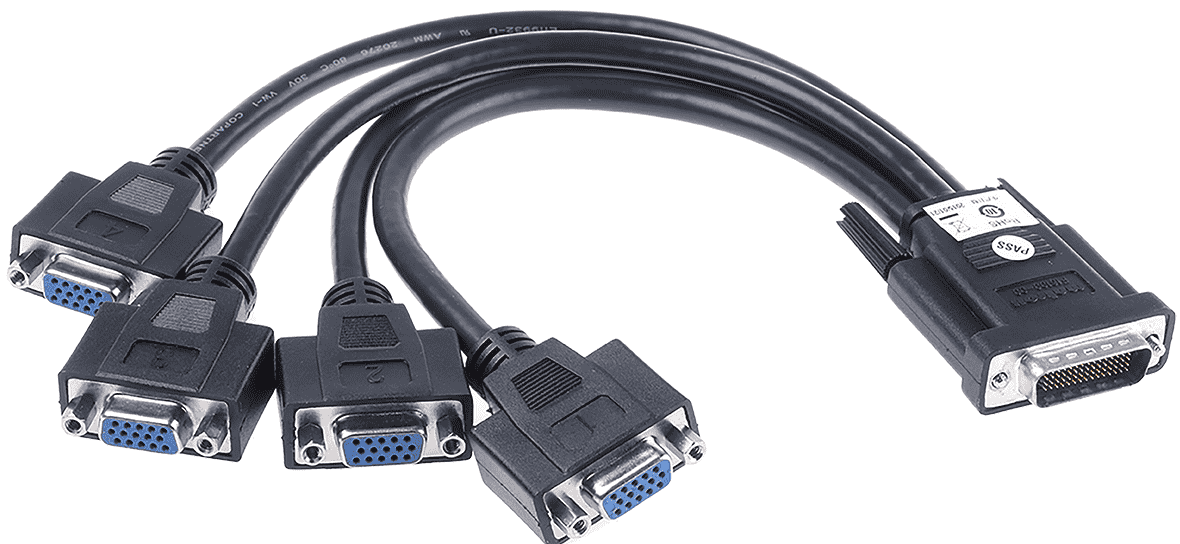
runs with better color consistency and no ghosting.
A good VGA cable has high-purity copper conductors, dense shielding (ideally individually shielded RGB lines), molded strain relief, and a solid connector design with secure connector screws. These features matter most on longer runs over 5m.
Replace Poor-Quality or Aging VGA Cables
| Feature | Low-Cost VGA Cables | Better-Shielded Cable |
| Conductors | Thin conductors | High-purity copper |
| Shielding | Poor shielding or none | Foil plus braid, per-channel coax |
| Strain relief | Weak connector strain relief | Molded strain relief |
| Pins | Prone to wobble | Stable pin alignment |
| Typical result | Snow, ghosting, color instability | Clean image at longer |
How Manufacturers Ensure Reliable VGA Cables
Reliable VGA cables come from three build choices: a high-purity oxygen-free copper conductor on each line, aluminum foil shielding with a twisted ground wire, and precise D-sub 15-pin molding that keeps every pin aligned. Together, these support stable analog signal transmission over longer distances.
Production teams who build cable assemblies for global OEMs describe a fairly consistent process:
- Design Input: The work starts with customer drawings and specifications covering length, shield type, connector style, and pin assignments.
- Samples First: Samples are built and tested on real equipment before bulk supply begins.
- OEM/ODM Customization: Custom VGA cables and wire harnesses are made for medical equipment, industrial monitors, security systems, KVM switches, legacy PCs, and projectors.
- Supply Models: Many factories in China offer wholesale supply for distributors and act as a just-in-time production partner for OEMs that need cables delivered on a fixed schedule.
A cable manufacturer that controls molding in-house can usually keep pin alignment consistent from batch to batch. Buyers who source replacements for industrial lines often say this consistency matters more than any single spec on the datasheet.
Expert Tips from the Manufacturer
Manufacturers recommend copper conductors over aluminum, double shielding for noisy sites, and cables no longer than the job needs. These tips come from failure patterns seen on returned cables:
- Avoid Cheap CCA Conductors: Copper-clad aluminum carries less signal and becomes brittle faster with repeated bending.
- Choose Double Shielding for Industrial Use: A foil-plus-braid shield blocks far more noise than foil alone.
- Insist on Molded Connectors and Strain Relief: Most returned cables fail where the wire enters the plug.
- Stay Within the Recommended Length: Extra cable coiled on the floor adds loss and picks up noise without any benefit.
- Store Below 80℃: Heat softens the jacket and stresses internal joints, so keep spare cables away from hot cabinets and direct sun.
Add a VGA Amplifier or Repeater
A VGA amplifier or repeater becomes the practical fix once a run stretches beyond 10m. These active solutions regenerate weakened signals partway along the path, so the monitor receives a stronger, cleaner picture than a passive cable could deliver alone.
Installers who handle extended VGA runs usually mount the booster close to the source. At that point the signal is still clean, so the amplifier strengthens the picture instead of magnifying noise picked up along the way. Many units also include gain and equalization dials. Technicians often adjust these while watching fine text, turning them up until ghosting fades and stopping before edges turn harsh.
Consider Signal Conversion
Converting VGA to HDMI or another digital connection makes sense when the source device offers a digital output, the run covers very long distances, or the screen is one of today’s modern high-resolution displays. Digital signals don’t pick up analog noise along the way, so the picture arrives the same as it left.
Signal conversion has some practical limits:
- VGA-to-HDMI Converter: This must be an active, powered unit, because it has to turn an analog signal into a digital one. A passive cable can’t do that. Cheap adapters sold as “simple cables” are a frequent cause of black screens in projector use.
- Convert at the Source: Converting near the PC captures the image before the cable adds noise. Converting at the far end only digitizes a signal that has already degraded.
- CAT5/6 Extenders: These send video over network cabling and reach far beyond what a VGA cable can manage on its own.
- Fiber-Based Solutions: These handle very long distances and electrically noisy plants where copper struggles.
Converting VGA to HDMI won’t restore detail the analog stage has already lost. Integrators often see users expect a converter to sharpen a VGA-only laptop’s output. It can’t.
Should You Upgrade from VGA?
When to Upgrade from VGA
Upgrade when you need sharper text, better color consistency, plug-and-play detection, or long-term stability on large panels. Keep VGA when the equipment is a basic office workstation or an older projector that works well as it is.
| Stay With VGA | Move to HDMI or DisplayPort |
| Basic office tasks at 1024×768–1280×1024 | Modern high-resolution displays |
| Legacy hardware with no digital output | Source device already has digital interfaces |
| Short runs in quiet rooms | Long runs or heavy interference |
Where VGA Still Makes Sense Today
VGA still earns its place in industrial automation systems, security and monitoring rooms, educational facilities, and KVM setups. Many legacy PCs and projectors in these settings have no other output, and swapping them out would cost far more than maintaining a cable.
VGA’s age is rarely the real problem. Technicians who maintain control applications point out that a VGA link built with the right components and proper planning delivers reliable performance for years. The trouble usually starts with improvised runs, cheap adapters, or cables routed beside power lines. In those environments, VGA stays a practical choice as long as distances stay sensible.
FAQs
How Long Can a VGA Cable Run Before Signal Degrades?
Standard VGA cables run reliably to about 5 meters (16 ft) at full HD. With high-quality shielding, runs of around 15 meters (50 ft) are realistic before image quality starts to degrade. Longer runs need signal boosters.
Why Does My VGA Image Look Blurry Over Long Distances?
Longer cables weaken the analog signal through attenuation, which strips away fine detail first. Crosstalk between the RGB lines and outside interference add ghosting and color distortion, so the result is blurry images.
Can a VGA Amplifier Improve Signal Quality?
Yes. VGA amplifiers regenerate weakened signals on long cable runs, which restores clarity, brightness, and stability. They work best when placed near the source.
Does Cable Quality Affect VGA Performance Over Distance?
Cable quality has a major effect on VGA performance over distance. High-purity copper conductors reduce signal loss, multiple shielding layers block interference, and properly molded connectors keep the pins in solid contact.
Is It Better to Convert VGA to HDMI or Use a Long VGA Cable?
For very long distances or high-resolution displays, converting VGA to HDMI usually gives more reliable performance, because digital signals don’t degrade gradually. DVI is another digital option, and fiber optic transmission covers the longest runs. For short runs, a good VGA cable is often enough.
Why Does My VGA Say “No Signal”?
A “No Signal” message usually comes from a loose connection, a bent pin on a sync line, or the wrong input selected on the monitor. A low-quality cable with poor shielding can also lose sync completely.
Can a Bad VGA Cable Cause Blurry Screen?
Yes. A bad VGA cable with thin conductors adds attenuation, and analog VGA is sensitive to that loss. On long cables, the result is a blurry screen with ghosting around text.
Do VGA Cables Affect Resolution?
They can. A quality cable passes the correct EDID data, which tells the PC which resolution options the monitor supports. Cables missing the data lines often limit the resolution list. Poor cables also can’t carry enough bandwidth for clean high-resolution output.
Why Is My VGA Screen Blurry?
The most common causes are an incorrect resolution, monitor sampling misalignment, poor cable quality, or a weak analog signal. Set the native resolution first, then run Auto Adjust.
Why Does My VGA Screen Show Snow or Noise?
Snow noise comes from interference reaching the cable. The usual culprits are poor shielding, nearby power cables, loose connectors, a damaged cable, or low-quality cables.
Why Is the VGA Display Missing One Color?
A display missing one color almost always has a bent VGA pin, a broken VGA pin, poor connector contact, or internal cable damage on that line. Losing the red channel leaves a cyan tint. Losing the green channel leaves magenta, and losing the blue channel leaves yellow.
Why Does VGA Flicker?
VGA flicker usually comes from an incorrect refresh rate, loose connectors, outdated graphics drivers, or electromagnetic interference. If none of those fix it, monitor hardware failure is the remaining suspect.
Is VGA Still Worth Using?
For legacy systems, yes. For modern displays, upgrading to HDMI, DisplayPort, or another digital interface gives better image quality and simpler setup.