
The Master Boot Record vs GUID question comes down to age and scale. MBR is a 1983 partitioning scheme built for legacy BIOS machines and capped at roughly 2 TB. The GUID Partition Table (GPT) is the UEFI-era standard that handles enormous disks, supports 128 partitions in Windows, and keeps a backup of its own structure. For nearly any new storage drive, GPT is the safer default, and MBR survives mainly where old firmware or an old operating system requires it.
- Master Boot Record vs GUID
- What Is Disk Partitioning?
- Importance of Disk Partitioning
- What Is Master Boot Record? / What Is MBR?
- How MBR Works
- Advantages of MBR
- Disadvantages of MBR / Limitations of MBR
- When to Use MBR
- What Is GUID Partition Table? / What Is GPT?
- How GPT Works
- Advantages of GPT
- Disadvantages of GPT
- When to Use GPT
- Key Differences Between MBR and GPT
- Partition Limitations
- Disk Size Support
- Data Integrity and Recovery
- Compatibility with Operating Systems
- Choosing the Best Partitioning Scheme / Choosing Between MBR and GPT
- Factors to Consider
- Use Cases for MBR
- Use Cases for GPT
- How to Convert Between MBR and GPT
- Tools for Conversion
- Step-by-Step Conversion Process
- Risks and Precautions
- Final Recommendations
- FAQ
These are the two primary partitioning schemes on PCs today. They are also the most widely used partitioning schemes on Windows, Linux, and macOS hardware. Disk partitioning carves a hard drive into multiple sections, and each section acts as a separate volume. The scheme defines the disk structure, which controls where data is stored, how it’s found, and how data is accessed during boot.
Technicians who rebuild machines for a living call the scheme a critical decision that most people never notice making. It usually happens during setting up a storage drive, with one click in an installer or a Disk Management prompt. The consequences show up later: a 4 TB disk that only shows 2 TB, a PC that won’t boot after a firmware change, or a corrupted table with no backup to fall back on.
The main variables are:
- Firmware type: legacy BIOS or UEFI
- Operating system: its age and edition
- Disk size: the capacity of the computer’s storage
- Partitioning needs: how many partitions you plan to create
Each scheme has its own features, limitations, advantages and disadvantages. These affect compatibility, storage capacity, storage management, and future-proofing. One common misconception is worth clearing up early. Neither scheme makes a drive faster on its own. Optimal performance comes from correct partition alignment, which modern tools handle under both. The original Master Boot Record design and its successor are compared below from a practitioner’s angle, so you can make an informed decision about managing storage on anything from an aging office PC to a new NAS.
Master Boot Record vs GUID
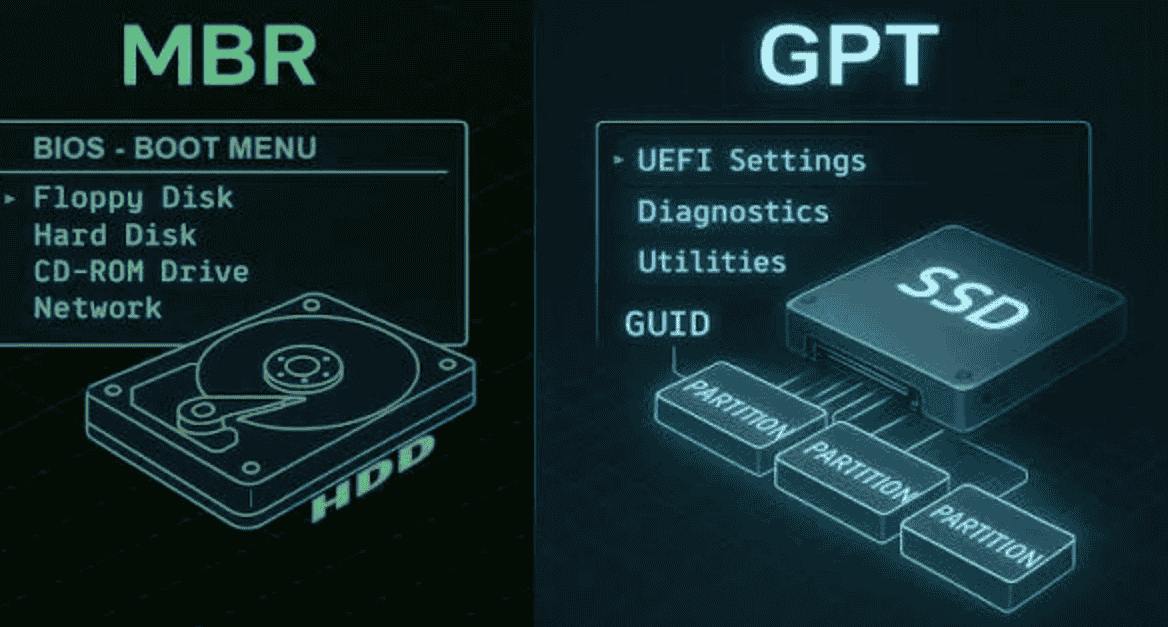
Master Boot Record vs. GUID Partition Table is a contest between a compact 1980s design and a redundant 64-bit successor. GPT wins on nearly every technical measure except compatibility with very old hardware. The comparison people search for as MBR vs GPT covers exactly these two disk partitioning schemes, and the quick verdict looks like this:
- MBR: The Master Boot Record fits in a single sector. It is limited in disk size and partition count, and it is readable almost everywhere.
- GPT: The GUID Partition Table removes the size and partition ceilings, adds integrity checks, and is required for UEFI booting on Windows.
- The name: “GUID” refers to the unique IDs stamped on the disk and on every partition, which is covered further below.
What Is Disk Partitioning?
Disk partitioning means dividing a physical storage device, either an HDD or an SSD, into distinct sections called partitions. The operating system treats each partition as an independent drive. Each one can carry its own file system, such as NTFS, ext4, APFS, or FAT32, and its own drive letter or mount point.
The logic is the same whether the device is a spinning hard disk drive or a solid-state drive. Admins point out that partitioning is purely logical. Nothing physically moves on the platter or the flash cells. The partition table is simply a map that tells the system where each region starts and ends. That map lets a single device’s storage resources serve several roles at once, which is why one disk supports such versatile use.
Importance of Disk Partitioning
Partitioning matters because it keeps system files separate from personal files and application data. This makes reinstalls, backups, and multi-boot systems much easier to handle. Experienced support staff will tell you the benefit shows up most during a crisis rather than on a normal day.
- Cleaner data management: Organizing data by role, with the OS in one place and projects and media in another, keeps related data grouped together. It also makes ownership obvious.
- Faster recovery: You can wipe and reinstall the OS partition without touching your documents. You can also back up a single partition image instead of the whole disk.
- Multi-boot configurations: Running different operating systems side by side requires each one to have its own partition.
- Security and segregation: Isolating critical data on its own volume lets you encrypt it with BitLocker or LUKS and leave everything else alone.
- Performance optimization, with caveats: On HDDs, keeping volatile temp files away from archives helps with reducing fragmentation. Placing hot data on the outer tracks also improves disk performance slightly. On SSDs the gain is negligible, and practitioners rarely partition flash for speed.
What Is Master Boot Record? / What Is MBR?
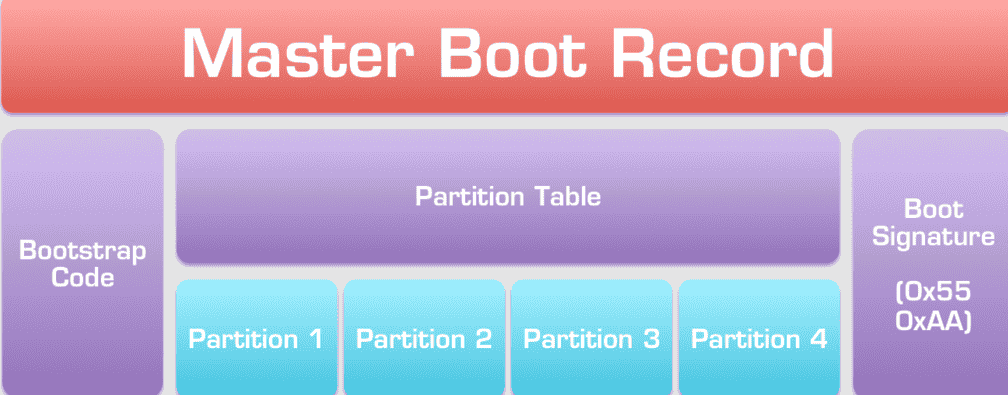
The Master Boot Record (MBR) is a 512-byte sector at the beginning of the storage drive. It holds boot code plus a partition table that describes up to four primary partitions. It arrived in 1983 with IBM PC DOS 2.0 and became the standard partitioning method on IBM-compatible PCs for nearly three decades.
Its strength was simplicity. In the early 1980s, a hard disk of 10 MB was considered generous, so packing all essential partitioning information into one boot sector made sense. The MBR partitioning scheme was widely adopted because every BIOS knew where to look: the very first sector of the storage device. That made the boot process predictable across hardware vendors.
The format turned out to be foundational technology. Windows, Linux, and macOS can all still read MBR disks, which is why USB sticks and SD cards often ship with it. Its compatibility with older operating systems is unmatched. If you need more than four partitions, the layout allows three primary partitions plus an extended partition that holds logical partitions. The exact mechanics are explained in the next section.
How MBR Works
MBR packs everything into the first 512 bytes of the disk. That space holds 446 bytes of bootloader code, a 64-byte partition table with four 16-byte entries, and a 2-byte boot signature (0x55AA).
| Offset | Size | Contents |
| 0–445 | 446 bytes | Bootloader code |
| 446–509 | 64 bytes | Four partition entries (16 bytes each) |
| 510–511 | 2 bytes | Signature 0x55AA |
At power-on, the BIOS loads this sector into memory and runs the code. The code finds the partition flagged as active and hands control to that partition’s own boot sector. Each entry stores partition information using 32-bit fields for the starting sector and the sector count. That 32-bit partition table addressing is the source of the size limit.
Four entries means four primary partitions at most. To get around this, one entry can be marked as an extended partition. The extended partition points to a chain of Extended Boot Records, and each record describes one of the additional logical partitions. Recovery specialists note that this chain behaves like a linked list. If one record breaks, every logical partition after it disappears from view.
Advantages of MBR
MBR’s main advantages are universal compatibility with legacy BIOS firmware and older operating systems, combined with a straightforward structure that’s easy to inspect and repair.
- It boots almost anywhere: Any machine running a Basic Input/Output System can start from an MBR disk. This includes older computers, industrial PCs, and many embedded devices.
- It’s lightweight and simple: The entire map lives in one 512-byte sector. Field techs often back it up with a single dd command before touching anything.
- It’s easy to repair: Decades of disk utilities can rewrite boot code or rebuild entries. Examples include bootrec /fixmbr, ms-sys, and TestDisk. Experienced users can even manipulate entries with a hex editor.
- People already know it: System administrators built their setup scripts and management processes around MBR when it was the standard partitioning scheme. That familiarity still saves time on older systems.
For a small storage drive that has to work with every operating system and every piece of firmware, those qualities still count.
Disadvantages of MBR / Limitations of MBR
MBR’s biggest limitations are its 2 TB disk size support ceiling, its four-primary-partition cap, and its complete lack of data redundancy. A single damaged sector can make the whole disk look empty.
Capacity Ceiling
With standard 512-byte sectors, MBR can address only about 2 terabytes. On larger disks, everything past 2 TB stays unallocated and unusable. This also puts a limited partition size on any single volume.
Partition Limitations
You get four primary partitions, or three primary and one extended partition. Logical partition chains add complexity and fragility.
No Integrity Protection
There’s no Cyclic Redundancy Check (CRC), no integrity checks, and no built-in mechanisms for self-repair. The partition table exists in exactly one copy, which makes it highly susceptible to corruption. An MBR corrupted by a stray write or a failing sector causes booting issues and apparent data loss. Recovery experts stress that the files usually still exist on the disk. Only the map pointing to them is gone.
Weak Boot Security
MBR boot code was a favorite target for bootkits. Ransomware such as Petya overwrote it directly. Secure Boot, the modern defense against this, requires UEFI.
MBR saw widespread use for decades, but any storage drive above its capacity limit needs a different partitioning scheme.
When to Use MBR
MBR is the suitable choice when the hardware or operating system can’t handle anything else. In practice, that means BIOS-based computers, legacy systems, and smaller drives under 2 TB.
It remains a valid option when all of these are true:
- The machine boots in BIOS mode only, or the OS is too old for GPT.
- The disk is under 2 TB.
- You have simple partitioning needs, with fewer than four partitions.
- Compatibility with older systems matters more than resilience.
If any one of those conditions doesn’t apply, MBR stops making sense.
What Is GUID Partition Table? / What Is GPT?
The GUID Partition Table (GPT) is a 64-bit partitioning scheme defined in the UEFI specification. It labels the disk and every partition with globally unique identifiers (GUIDs), and it removes MBR’s limits on disk size and partition count.
Intel developed it in the late 1990s as part of the Extensible Firmware Interface for Itanium servers. It was later folded into the Unified Extensible Firmware Interface, the UEFI standard used by virtually every PC sold today. Calling GPT a newer standard is technically accurate, although it’s now over 25 years old.
GPT replaces MBR’s cramped 16-byte entries with much richer data structures. Each partition carries a type GUID, such as C12A7328-F81F-11D2-BA4B-00A0C93EC93B for the EFI System Partition. It also carries a unique partition GUID and a human-readable name. That added partition information is why Linux can mount by PARTUUID and Windows can recognize its recovery partitions automatically.
For compatibility, sector 0 still contains a protective MBR. This is a placeholder entry marking the whole disk as occupied. It stops older systems and BIOS-era tools from treating a GPT storage drive as blank and offering to format it. The protective MBR is a small detail, but it’s a big reason this modern alternative replaced classic disk partitioning so smoothly.
How GPT Works
GPT stores its partitioning data in multiple copies. A primary header and partition table sit at the start of the disk, and a backup header and table sit at the end. Every location uses 64-bit entries, so addressing never runs out.
| Location | Contents |
| LBA 0 | Protective MBR |
| LBA 1 | Primary GPT header |
| LBA 2–33 | Partition entry array (128 entries × 128 bytes by default) |
| Middle of disk | Your partitions |
| Last 33 sectors | Backup entry array and backup header |
The default array holds 128 entries. The specification allows that array to be enlarged, which means virtually unlimited partitions in theory. The practical ceiling is OS-dependent. This built-in redundancy also expands your recovery options. Tools such as gdisk can rebuild a damaged primary header from the backup in seconds.
Advantages of GPT
GPT’s key advantages are larger disk support, more partitions, and real data integrity protection. These make it the default for modern systems and high-capacity storage drives.
Larger Disk Support
GPT handles disks larger than 2 TB with ease. Its theoretical ceiling is 9.4 zettabytes (9.4 ZB). Large partition size is no longer a concern, so modern storage devices like 20 TB HDDs and 8 TB NVMe drives work as a single volume if you want them to.
Increased Partition Numbers
Windows allows 128 primary partitions on GPT. You no longer need extended and logical partitions. Some guides describe this as unlimited partitions. “Virtually unlimited” is more accurate, because the operating system sets the real cap. Having multiple partitions without workarounds makes dual boot and multi-boot systems much cleaner to build.
Data Integrity
CRC32 checksums cover both the header and the partition array. Redundant copies at each end of the disk provide true data redundancy. CRC checks catch disk errors and partition table corruption before they cause a misread. The checksums add a layer of protection for the disk’s critical data structures, and recovery usually takes one command. Storage engineers consider this reliability the most underrated benefit GPT offers.
Flexibility
Thanks to the protective MBR, GPT can coexist with MBR-era tools. On some hybrid systems, such as older Intel Macs running Boot Camp, a hybrid MBR even mirrors a few GPT entries for legacy boot. This flexibility keeps GPT usable regardless of disk size or setup.
Disadvantages of GPT
GPT’s drawbacks are almost entirely about compatibility with legacy systems. Windows can only boot from GPT on UEFI firmware, and Windows XP 32-bit can’t use GPT disks at all.
- Old Windows versions: Windows Server 2003 SP1 can read GPT data disks but can’t boot from them on standard x86 hardware. Older systems running these versions get limited support at best.
- Legacy BIOS boot: Linux can boot GPT on legacy BIOS, but it needs a small BIOS boot partition for GRUB. This is a minor inconvenience, though it’s still an extra step during setup.
- Older tools: Some aging disk utilities and imaging software lack GPT software support. Those tools can misread the protective MBR as the real layout.
- Unfamiliar procedures: Admins trained on MBR face a short learning curve and need to update their management procedures.
Many admins still treat GPT as a new partitioning scheme, but these limitations rarely affect modern systems. They mostly matter when someone tries to keep an old operating system running alongside MBR habits.
When to Use GPT
GPT is the preferred choice for new computers, any disk larger than 2 TB, and any system booting through UEFI. On Windows 11, it’s effectively required.
Pick GPT when:
- The firmware is UEFI. Most modern systems ship this way, and many no longer offer a legacy mode.
- You’re working with large drives.
- You need more than four primary partitions or other complex partitioning.
- Data integrity matters to you.
On current hardware, GPT simply works seamlessly.
Key Differences Between MBR and GPT
MBR and GPT share the same basic purpose, which is mapping where partitions live on a disk. The key differences lie in their features, limitations, and use cases.
| Aspect | MBR | GPT |
| Introduced | 1983 | Late 1990s |
| Boot firmware | BIOS | UEFI (BIOS possible on Linux) |
| Max disk size | ~2 TB | ~9.4 ZB |
| Partitions | 4 primary | 128 by default |
| Redundancy | None | Backup header and table |
| Integrity checks | None | CRC32 |
| Secure Boot | No | Yes |
The subsections below look at each difference from a practical angle.
Partition Limitations
MBR allows 4 primary partitions, or 3 primary and 1 extended. GPT allows 128 primary partitions by default, and extended partitions are not required.
| Scheme | Native Limit | Workaround | Real-World Ceiling |
| MBR | 4 primary partitions | Extended plus logical | Fragile beyond about 10 |
| GPT | 128 entries | Enlarge array | OS dependent |
Admins running multi-boot labs note that the number of partitions adds up faster than expected. A typical install includes an EFI partition, MSR, Windows, recovery, and a Linux root plus swap. On MBR, needing more than 4 partitions pushes you into logical chains. On GPT, it’s just another entry in the table.
Disk Size Support
MBR’s maximum disk size is 2 TB because it uses 32-bit sector addressing. GPT uses 64-bit addressing and can theoretically reach 9.4 ZB.
The math is simple:
- MBR: 2³² sectors × 512 bytes = 2 TiB, which is about 2.2 TB.
- GPT: 2⁶⁴ sectors × 512 bytes ≈ 9.4 ZB.
One nuance seasoned storage engineers mention: on native 4K-sector drives, MBR’s ceiling technically rises to 16 TiB. Firmware and OS support for that combination is unreliable, though, so practitioners don’t plan around it.
Data Integrity and Recovery
GPT provides robust CRC error detection and a backup partition table. MBR has no redundancy and only very limited error detection.
On MBR, the only sanity check is the 0x55AA signature. If the sector is damaged, recovery means scanning the disk for partition signatures with tools like TestDisk. On GPT, CRC checks flag mismatches immediately, and both firmware and OS tools can restore the primary table from the backup.
Practitioners also flag a few quirks of this redundancy:
- Leftover backup tables: Wiping only the first sectors of an old GPT disk leaves the backup at the end. Tools may then detect a “ghost” GPT.
- Cloning to a larger disk: After cloning, the backup no longer sits at the true end of the disk. Most tools will offer to relocate it.
Compatibility with Operating Systems
MBR is readable by all versions of Windows, Linux, and macOS. GPT boot support on Windows requires a 64-bit edition and UEFI, starting with Windows Vista SP1 and Server 2008.
| OS | MBR | GPT Data Disk | Boot from GPT |
| Windows XP 32-bit | Fully supported | Not supported | Not supported |
| XP x64 / Server 2003 SP1 | Fully supported | Limited support | No |
| Windows Vista / Server 2008 (64-bit) | Fully supported | Yes | Yes, with UEFI |
| Windows 7–10 (64-bit) | Fully supported | Yes | Yes, with UEFI |
| Windows 11 | Data only | Yes | Required |
| Linux | Fully supported | Yes | Yes, even on legacy BIOS |
| macOS | Reads | Yes | Required |
Hybrid layouts exist, but OS compatibility tooling treats them as a last resort. Windows support for booting from GPT is strictly tied to UEFI.
Choosing the Best Partitioning Scheme / Choosing Between MBR and GPT
Choose GPT if the machine uses UEFI firmware, the disk is over 2TB, or the operating system is modern. Choose MBR only when traditional BIOS, older operating systems, or software requirements leave no viable option.
| Situation | Choice | Why |
| Newer computer with Windows with UEFI support | GPT | Required for UEFI boot and modern features |
| 4TB hard drive for data storage | GPT | MBR’s partition size limitation strands everything past 2TB |
| Windows 7 on an older computer with legacy BIOS | MBR | Optimal compatibility |
| Linux distribution on any hardware | Either | Linux boots both |
| macOS startup disk | GPT | No alternative |
| More than four partitions on a single drive | GPT | Avoids extended chains |
System age is the quickest filter. Technicians check the firmware first, then disk size, then partition requirements. OEM images that add a recovery partition and a tools partition quickly use up MBR’s four primary slots. That forces three primary and one extended partition, which is a messy layout to maintain.
Older software support is the last thing to verify. Some backup and imaging tools that ran on older systems never learned GPT. Modern operating systems, by contrast, assume it. Matching capacity, storage requirements, and specific needs against these factors covers most partitioning needs for Windows and Linux alike, and it keeps the relationship between disk size and operating system straightforward.
Factors to Consider
The main deciding factors are system compatibility, disk size, number of partitions, and data safety. If any of them points to GPT, GPT is the clear choice.
| Factor | Favors MBR | Favors GPT |
| Firmware | BIOS on older systems | UEFI on newer ones, where it’s mandatory for Windows |
| Disk size | Under 2 TB | Larger than 2 TB |
| Partition count | Four or fewer | More than four partitions |
| Protection against corruption | None | CRC checks and backup table |
Use Cases for MBR
MBR fits legacy systems, older computers, and small drives smaller than 2 TB with simple configurations of three or fewer partitions.
- Office desktops: Reviving a 2010-era office PC with its original hard drives.
- Firmware tools: Building a USB stick for BIOS firmware updates or DOS-based utilities.
- Industrial equipment: Running controllers or point-of-sale terminals locked to old operating systems.
- CSM boot: Booting UEFI boards in Compatibility Support Module mode. Note that many current boards have removed CSM entirely.
Use Cases for GPT
GPT is right for UEFI-based systems, large storage devices over 2 TB, and any build that needs many partitions or enhanced data protection.
- New Windows builds: Windows 11 installs on modern hardware.
- High-capacity storage: NAS arrays and archive disks.
- Lab setups: Multi-boot machines and advanced partitioning for Linux, such as separate /home, /var, and swap.
- Servers: Systems where a corrupted partition table would mean downtime.
How to Convert Between MBR and GPT
Converting between MBR and GPT is straightforward on an empty disk. A disk holding data must be handled carefully, because the standard Windows GUI method erases everything. MBR2GPT and some third-party tools can convert in place without data loss.
The most common reason for converting is upgrading hardware. Moving to Windows 11 or to a board without legacy boot forces the switch, because newer operating systems expect GPT.
Tools for Conversion
Windows Disk Management and Diskpart are built-in tools that convert only empty disks. MBR2GPT and several third-party tools convert without wiping the disk.
| Tool | Type | Keeps Data? | Practitioner Notes |
| Windows Disk Management | Built-in tool | No | User-friendly interface |
| Diskpart | Command-line utility | No | Fast and scriptable |
| MBR2GPT | Built-in (Windows 10 1703+) | Yes | System disk only |
| GParted | Free and open-source tool | No (new table) | Linux live USB |
| gdisk | Linux CLI | Yes | Converts in place |
| AOMEI Partition Assistant | Third-party tool | Yes | Known for ease of use |
| MiniTool Partition Wizard | Third-party tool | Yes | Some features paid |
| EaseUS Partition Master | Third-party tool | Yes | Robust features |
| Paragon Hard Disk Manager | Comprehensive disk management software | Yes | Valued for its reliability |
Step-by-Step Conversion Process
On Windows, the reliable process is to back up your data, delete all partitions, convert the disk, then recreate partitions and restore data.
Method 1: Disk Management
- Copy important data elsewhere and verify the backups.
- Press Win + X and open Disk Management.
- Right-click each volume on the target disk and delete it.
- Right-click the disk label and choose Convert to GPT or Convert to MBR.
- Create partitions on the converted disk, then restore your files.
Method 2: Diskpart
Run these commands in order: list disk, select disk 1, clean, then convert gpt. Be aware that clean removes all partitions on the selected disk.
Method 3: MBR2GPT (System Disk, No Wipe)
- Run mbr2gpt /validate /disk:0 /allowFullOS.
- Run mbr2gpt /convert /disk:0 /allowFullOS.
- Switch the firmware to UEFI before rebooting.
Experienced techs still take a full image before any conversion, even the in-place kind.
Risks and Precautions
The significant risks are data loss and an unbootable system. Both usually come from converting a boot disk without matching the firmware mode to the target partition scheme.
- Data erased: Disk Management and diskpart clean wipe everything, with no undo.
- Boot issues: A boot disk converted to GPT won’t start until the firmware is set to UEFI. Switching back to MBR requires legacy mode.
- Compatibility problems: Older OS installs may not boot from the new layout at all.
- Interruptions: A power cut during the conversion process can corrupt the partition table.
Before you begin, take an image, suspend BitLocker, connect a UPS to desktops, and confirm that your firmware supports the scheme you’re converting to.
Final Recommendations
GPT is the recommended partitioning scheme for modern systems. MBR should stay with legacy systems that can’t boot anything else. The bullets below show how practitioners apply that rule on real machines.
- Default to GPT on new builds. Technicians format every new drive as GPT unless something specific blocks it. UEFI firmware, Windows 11, and current Linux installers all expect it. Choosing it up front also avoids a conversion later.
- Keep MBR only where it’s required. Practitioners leave MBR in place on BIOS-only boards, older operating systems, and industrial or point-of-sale machines tied to old software. If a working legacy setup boots reliably, they usually don’t convert it for the sake of it.
- Check firmware before touching the disk. Experienced techs confirm whether the board runs UEFI or legacy BIOS before picking a scheme. A mismatch between firmware mode and partition style is the most common cause of a disk that won’t boot after setup.
- Use GPT for anything over 2 TB. MBR leaves the space past 2 TB unallocated, and nothing can use it. On large data drives, NAS disks, and archive storage, GPT is the only scheme that uses the full capacity.
- Pick GPT when you need flexibility. Multi-boot setups, separate Linux mount points, and recovery partitions fill MBR’s four primary slots quickly. GPT allows 128 entries by default, so you won’t need extended-partition workarounds.
- Value GPT’s advanced features on critical machines. Admins rely on GPT’s CRC checks and backup partition table for servers and workstations where downtime is costly. Recovering from a damaged table usually takes minutes instead of a full data rescue.
- Plan conversions instead of rushing them. Before moving an older system from MBR to GPT, practitioners take a full disk image and use MBR2GPT or a trusted third-party tool to keep data intact. Then they switch the firmware to UEFI before the first reboot.
- Retire MBR as hardware ages out. Treat MBR as outdated for new installations. Many current motherboards have removed legacy boot support entirely. Each time an older machine is replaced, practitioners move its storage to GPT.
FAQ
What Are the Main Advantages of Using GPT Over MBR?
GPT’s main advantages are support for larger disks, more partitions, and data integrity features such as CRC checksums and a backup table. That combination makes it superior to MBR on modern systems.
Can I Convert a Disk From MBR to GPT Without Losing Data?
Yes. MBR2GPT, gdisk, and several third-party tools can convert MBR to GPT without data loss. Built-in Windows methods require deleting all partitions first. Always take a backup before converting any disk that holds important data.
What Operating Systems Support GPT?
All modern operating systems support GPT. This includes 64-bit Windows Vista and Server 2008 onward, every current Linux distribution, and macOS, which requires GPT for startup disks.
Is MBR Still Relevant in Modern Computing?
MBR is still relevant for older systems, BIOS-based hardware, and small removable media. For new installations, though, it’s effectively obsolete, and modern computing has moved to GPT.
How Do I Check if My Disk Is MBR or GPT?
In Windows, open Disk Management, right-click the disk, choose Properties, and look at Partition style on the Volumes tab. To check the disk from the command-line utility instead, run diskpart and then list disk. An asterisk in the Gpt column means GPT, and a blank means MBR. On Linux, sudo fdisk -l shows “gpt” or “dos” as the partition scheme.