

No unblocked browser extension reliably works on a school-managed Chromebook, because admins use Google Admin and Chrome Enterprise to block every extension outside an approved allowlist, and bypass attempts usually break the school’s acceptable-use policy. The legitimate routes are an allowlist request through your teacher or IT, a school-approved proxy portal, or privacy browsers and proxies on your own personal device and personal network.
- What Does “Unblocked Browser” Mean on a School Chromebook?
- Why Does Your School Chromebook Block So Many Sites?
- Is Your Chromebook School-Managed or Personal?
- Are You Allowed to Unblock Sites on a School Chromebook?
- What Happens If You Bypass the School Filter?
- Which Methods Do Students Try for Blocked Sites?
- How Do Proxies and VPNs Handle School Filters?
- How Do You Pick a Browser or Access Method?
- Is Opera’s Free Built-In VPN Worth It for Students?
- Is Tor Browser Too Slow for Schoolwork?
- Can You Install Brave on a Chromebook?
- What Does Epic’s One-Click Proxy Do?
- Does UR Browser Work on a Chromebook?
- How Does Puffin’s Cloud Browser Load Pages?
- Can You Use Aloha Browser on a Chromebook?
- Is Hide.me’s Free Proxy Good for Research Pages?
- Does ProxySite Handle Video Lessons?
- Can CroxyProxy Play Videos Without Installing Anything?
- Where Does Psiphon Run, and How Does It Work?
- Is the DuckDuckGo Extension Enough for Privacy?
- Is Startpage a Private Search Engine or a Browser?
- Is Zen Browser Available on Chromebook?
- How Do You Set Up an Approved Proxy on a Chromebook?
- What Can You Do When Chromebook Settings Are Locked?
- Why Don’t Proxies and Extensions Work on Managed Chromebooks?
- Which Access Method Is the Safest and Most Reliable?
- Is Getting a Site Unblocked Worth the Hassle?
- How Do Students Get Research Sites Approved?
- How Do You Stay Safe Around Proxies and Unfamiliar Portals?
- Can You Remove MDM or Screen Time From a School Device?
- Is It Illegal to Use an Unblocked Browser at School?
- Can You Unblock Sites Without Admin Access?
- Will a Proxy Work on a Google Admin-Enrolled Chromebook?
- Should You Use a Proxy or a VPN on a Chromebook?
- Is a Free Proxy Safe Compared With a Paid One?
- Can Your School See What You Browse?
- Do You Need an Extension to Use a Proxy?
- Which Websites Do Schools Usually Block?
- What’s the Safest Way to Unblock a Site for Class?
- Which Browser Works Best on a School Chromebook?
- Why Are Tor and Free Proxies So Slow?
- How Do You Get Past a School Block the Right Way?
- Can You Unlock a Restricted School Browser?
Students usually hit the problem in the same way. A worksheet links to a public dataset, a coding tutorial, or a museum archive, and the page returns a gray block message instead of content. The student searches for a quick fix and finds a dozen “unblocker” extensions. Each one promises unblocked sites in a single click.
The extension route fails on managed hardware for a structural reason, and luck has nothing to do with it. A school-issued device is not just a laptop with a filter installed. It is an enterprise-enrolled machine that receives instructions from a district console. Those instructions decide which extensions can be installed at all.
This guide works backward from that fact. It covers what blocks a site, who controls your device, what common tools really do, and how to get a study resource opened without risking your account. It also covers the browsers students often ask about, and it is honest about where each one can and cannot run.
What Does “Unblocked Browser” Mean on a School Chromebook?
An “unblocked browser” on a school Chromebook is any browser, extension, proxy, or VPN marketed as a way to load sites that the school’s filter blocks. The label sounds like one product, but it actually covers four separate families of tools.
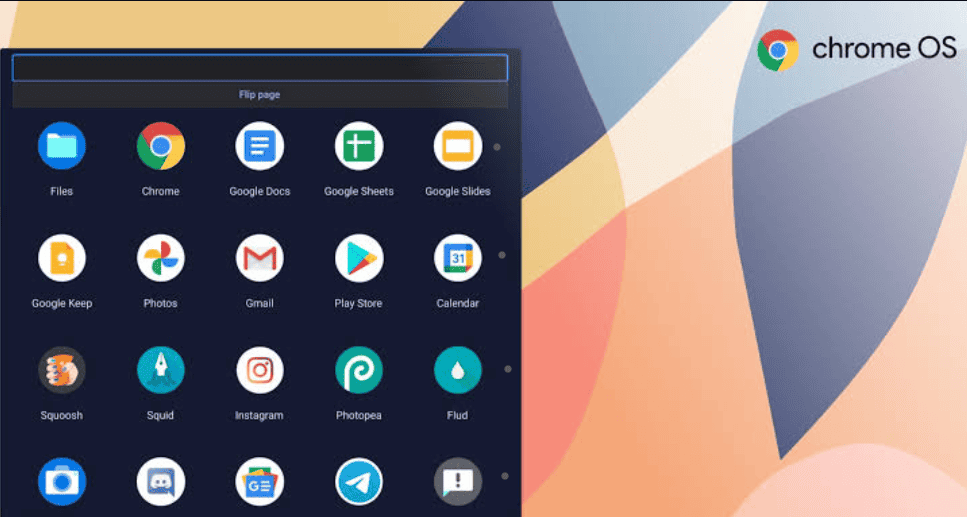
The first family is the privacy browser, built to cut tracking rather than to beat filters. The second is Tor Browser, which relies on onion routing to help people browse anonymously. The third is the web-based proxy browser, a site that fetches pages for you. The fourth is the anti-detect browser, a niche tool that tends to raise security red flags on any managed Chromebook.
Marketing around these tools leans heavily on entertainment. Searches like YouTube unblocked, Spotify unblocked, Roblox unblocked, and unblocked anime websites pull in huge traffic. Lists promising a working unblocked browser often blur together several different situations: a school firewall, a workplace restriction, and regional content limits. Each of those blocks works differently.
The same confusion shows up across devices. A restricted iPhone, a school iPad, a library school computer, and a Chromebook can all sit behind a content filter on the school network. Before anyone tries to install VPN apps, one point matters most. Internet activity on a managed device can be tracked and recorded, and that record can include your browsing history. A network restriction on restricted sites is often the smaller of the two hurdles.
Why Does Your School Chromebook Block So Many Sites?
A school Chromebook blocks many sites because schools filter at two filtering layers, the network and the device, and federal rules tie that filtering to school funding. Both layers have to agree before a page loads.
The legal layer comes first. The Children’s Internet Protection Act (CIPA) is a condition tied to E-Rate discounts, a form of federal funding for schools and libraries. Under CIPA, schools must “adopt and enforce an internet safety policy that includes a technology protection measure.” That measure must block content that is obscene content, child pornography, or harmful to minors.
That technology protection measure is usually a DNS-level filter or a network-level filter. It runs on a router or a DNS proxy, and it checks each request against a blocklist. Filters sort sites into categories such as social media, streaming, and games, and they also block known malicious domains. On top of that, they can enforce age-appropriate browsing, SafeSearch, and anti-phishing rules.
The device layer is the part most students miss. Device-level filtering is configured in the Google Admin Console, and it travels with an enterprise-enrolled Chromebook to your home network. Admins can push URL allowlists and URL blocklists that stay active off campus. A site can be blocked by the device profile even when the campus Wi-Fi filter plays no part.
One quieter cause of blocking deserves attention. “Blocked” sometimes means misclassified, especially for new or niche educational sites. Here is a pattern I see often: a page fails on campus but also fails at home when you sign in with your school account. That tells you the district set the rule through device network controls, not through the building’s router.
Is Your Chromebook School-Managed or Personal?
A Chromebook is school-managed if your school or district enrolled it in Google Admin, and personal if you own it and control its settings. That single distinction shapes every option discussed later.
On a managed device, the school district holds policy control. Device policies limit app installs and extension installs, and logging and visibility may be switched on for monitoring. On a personal machine, device ownership sits with you, and settings are largely unrestricted. Here is the side-by-side view:
| Attribute | School-managed Chromebook | Personal Chromebook |
| Who controls it | School or district | You, the owner |
| App and extension installs | Often limited | Usually open |
| Ability to change policies | Restricted | Mostly unrestricted |
| Logging and visibility | Possible under policy | Depends on your setup |
| Best fix for blocks | Allowlist request | Adjust your own tools |
Enterprise-enrolled status also overrides user-level settings. Because restricted permissions sit above anything you change, fields such as a gateway hostname, port number, username, or password for proxy access may be grayed out entirely. Even with valid proxy credentials, the device may refuse the change.
ChromeOS also uses a per-network configuration model. Settings saved for one Wi-Fi network do not carry over to another. That detail only becomes useful on hardware you own. On school hardware, the practical fix is an allowlist request.
Are You Allowed to Unblock Sites on a School Chromebook?
You are generally not allowed to unblock sites yourself on a school Chromebook, because most schools prohibit circumventing filters even when the intent is harmless. The rule covers any firewall bypass, whatever tool you use.
Most acceptable-use policy documents follow a similar pattern. An AUP usually requires education-only use, forbids tampering with security controls, and limits you to approved accounts, approved extensions, and approved services. A managed device is lent to you under those terms, not handed over outright.
Legality is a separate question from school rules. Using an unblocked browser is not illegal in most regions, so the issue is rarely a legal one. The real issue is school policy, and the IT department is the body that enforces it.
The workable alternative is to ask openly. An access request, sometimes called a whitelist request, put forward transparently with a clear educational purpose, turns a blocked page into an approved one. In my observation, requests that name the specific page and assignment get through far faster than vague complaints about “the filter.”
What Happens If You Bypass the School Filter?
If you bypass the school filter, you can face device, account, and network consequences, even when the site you opened was harmless. Policy evasion tends to be judged by the method you used, not by the page you visited.
Possible penalties usually fall into three groups:
- Device restrictions: a temporary lock, reduced permissions, or being told to return Chromebook hardware to IT.
- Account actions: password resets, new sign-in rules, or disabled features on your school account.
- Network penalties: having campus Wi-Fi blocked for your device, or increased monitoring going forward.
Discipline is only part of the cost. Unsafe services often trigger security flags, and logged browsing on a managed Chromebook gives full administrator visibility. Mixing personal logins with a school profile also creates policy spillover. Sensitive logins typed into a personal profile on school hardware may still fall within the district’s view.
Privacy risk runs in the other direction too. An FTC warning notes that free VPN and proxy-style apps can share your information with, or redirect your traffic through, third parties. Some also send unencrypted traffic. That free proxy risk and data sharing problem is serious enough to treat as a red flag on its own. Ad-heavy portals and certificate warnings are further reasons to back away.
The ethical route also keeps data privacy intact. Filters produce false positives, and following district instructions with transparency builds trust with the people who can fix them.
Which Methods Do Students Try for Blocked Sites?
Students commonly try web proxies, standalone VPNs, browser tricks, cached copies, and personal hotspot connections. Each method relies on a different idea about where the block lives.
Web-based tools are the most common starting point. A web proxy such as ProxySite, Hide.me, or KProxy acts as an intermediary, a relay that fetches pages for you. A proxy server can also help with geo-limited resources. Even so, the routing behavior of these tools is easy for a category filter to spot.
The next group relies on browser extensions and outside apps. A standalone VPN such as ProtonVPN or Windscribe needs unapproved installs on a managed device. Smart DNS services change DNS settings, mainly for streaming media. A URL shortener like Bitly is the least reliable option on any curated list of methods.
Then come browser features and caching services. A cached copy from the Wayback Machine, a reader view, or a translation view such as the Google Translate trick can sometimes surface text from a page. Students also mention mobile data through a hotspot. On a school-managed device, though, device policy still applies, so these tricks remain circumvention.
A smarter question asks why the page was blocked at all. If the cause is a category mistake, IT can fix it for everyone. Until then, a teacher-provided PDF or an alternate source usually covers the assignment.
How Do Proxies and VPNs Handle School Filters?
A proxy server forwards your requests through another machine, while a VPN wraps your connection in an encrypted tunnel, and neither one overrides device policy on a managed Chromebook. The difference between them matters mostly at the network layer.
A proxy changes the IP address a website sees, which is a form of IP-masking. An HTTP proxy or HTTPS proxy carries only web browser traffic. A SOCKS5 proxy is protocol-agnostic, so it can also carry non-browser traffic from apps.
Neither proxy type encrypts traffic by default. That leaves unencrypted metadata open to deep packet inspection and local network inspection, which can still trigger destination filtering or a category block. A VPN hides the destination from local inspection, so it can defeat a network-level block on hardware you own.
On school hardware, however, the bigger obstacle sits in ChromeOS network settings controlled by device policy. Admins often lock that panel outright. Encrypting the tunnel does nothing when you cannot open the tunnel in the first place.
How Do You Pick a Browser or Access Method?
You pick a browser or access method by first confirming who owns the device, then comparing compatibility, privacy, security, and speed. Ownership narrows the list before any feature comparison starts.
On a school-issued device, the browser question is mostly settled for you. On your own hardware, check whether a tool offers a web version or an app version, and whether it includes HTTPS enforcement, malware blocking, and ad filtering. Also check how it handles browser history and tracking.
Performance matters for everyday study. Watch for smooth loading on lecture streaming and web-based games used in class, and note any lag. A built-in VPN, an ad-blocker, an online option, or a browser extension version can each help. Chromebook compatibility remains the deciding filter for most students.
Commonly suggested matches fit different needs. Web proxies are often named for a locked-down Chromebook, though that use breaks school policy. Proxies and Puffin Browser are named for blocked video, Opera Browser for a personal laptop, and Tor Browser for private research. Others worth knowing include Brave Browser, Aloha Browser, Psiphon Browser, UR Browser, Epic Privacy Browser, DuckDuckGo Browser, Startpage Browser, and Zen Browser. The sections below cover each one in turn.
Is Opera’s Free Built-In VPN Worth It for Students?
Opera’s built-in VPN is worth it for students on personal devices, because it is free, has unlimited data, and blocks many ads and trackers. A school-managed Chromebook usually will not allow the install at all.
Opera runs on Windows, macOS, Linux, iOS, and Android, and the Android build covers Chromebooks. It includes a built-in ad-blocker. The sidebar links Spotify, TikTok, Facebook, Twitter, and WhatsApp, and the toolkit adds Opera AI, Screen Split, Snapshot, and Music Player.
Students often weigh Opera against Brave. Both are Chromium-based, so each feels Chrome-like and keeps good extension compatibility. Both run on Windows, macOS, Linux, iOS, and Android, and both reach a Chromebook through the Google Play Store. Brave adds anti-tracking, ad-blocking, and a private window with Tor integration. Its built-in VPN, however, needs a subscription.
Brave’s fast loading and privacy-focused design suit anyone who cares more about blocking than about extras. Neither browser changes what a school firewall permits on enrolled hardware. On your own machine, Opera gives you a no-cost VPN, which is solid value.
Is Tor Browser Too Slow for Schoolwork?
Tor Browser is often too slow for everyday schoolwork, because it sends traffic through several volunteer relays with layered encryption. It suits private reading better than video lectures or timed online tests.

Tor runs on Windows, macOS, Linux, and Android, and Tor has no official iPhone or iPad app. It ships with no built-in VPN and no ad-blocker, and it clears cookies when you finish. A portable version runs from a USB drive. Running that portable version on school hardware would count as tampering.
Psiphon is the tool students most often compare with Tor. It blends VPN, proxy, and SSH technologies for censorship bypass, and it is open-source and free. It runs on Windows, iOS, and Android. Listings describe a full browser iOS only, with VPN-only Android and VPN-only Windows builds.
From what users report, Psiphon has a basic interface, shows ads, and can feel like a slow connection on weak internet. Like Tor, it does not get past school filters on an enrolled device. Tor offers deeper privacy, while Psiphon is easier for casual use on personal hardware.
Can You Install Brave on a Chromebook?
You can install Brave on a personal Chromebook through the Google Play Store, but a school-managed Chromebook typically blocks the install. Brave and Opera are top Chromebook picks because both are Chromium-based and available on the Play Store.

Brave’s built-in VPN requires a subscription, while its tracker and ad blocking work out of the box. That trade-off matters for students on a tight budget.
Opera is the natural comparison. It is built on Chromium, installs on ChromeOS through the Google Play Store, and also covers Windows, macOS, Linux, iOS, and Android. Opera includes a free VPN with unlimited data, an ad blocker, and a tracker blocker, so no subscription is required.
Opera’s sidebar handles Spotify, TikTok, Facebook, Twitter, and WhatsApp, and it adds Opera AI, Screen Split, Snapshot, and Music Player. Many users mention easy Chrome import and describe it as a fast browser, a lightweight, mainstream browser. On a school device, software installation goes through IT. On a personal laptop, either browser is a capable choice.
What Does Epic’s One-Click Proxy Do?
Epic Privacy Browser’s one-click proxy sends your browsing through an encrypted proxy with a single click, which hides your IP address from the sites you visit. Epic is a privacy tool first, and its proxy remains circumvention on managed hardware.
Epic is Chromium-based and blocks trackers, ads, and cookies by default. It runs on Windows, macOS, iOS, and Android, with Chromebook coverage through Android. It includes an ad-blocker but no built-in VPN.
DuckDuckGo is a lighter alternative. It focuses on private search and encryption, with no tracking, ad-blocking, and no ads of the targeted kind, which keeps hidden activity out of ad profiles. It runs on Windows, macOS, iOS, and Android, including Chromebook. It also comes as a browser extension for Chrome, Firefox, Edge, and Opera.
DuckDuckGo has no built-in VPN, so it cannot get past strict site blocks, and some users report unstable loading speed. If you want a built-in proxy on a personal laptop, Epic covers that need. If you only want quieter search, DuckDuckGo is enough.
Does UR Browser Work on a Chromebook?
UR Browser does not work on a Chromebook, because it runs only on Windows and macOS. Chromebook owners can skip it.
On a Windows or Mac laptop, UR Browser offers an integrated VPN and three privacy levels. It also scans downloads for malware, which helps if you collect lots of PDFs from unfamiliar sites.
Zen Browser is even narrower. It is Windows only, with no mobile support and no Chromebook support. Zen is free and open-source, with an ad-blocker and tracker blocker, and some users pair it with optional VPN integration through add-ons.
Users often praise Zen as customizable, with an attractive design and fast loading on desktops. For Chromebook owners, neither Zen nor UR is an option. The Chromium-based browsers covered above are the better fit.
How Does Puffin’s Cloud Browser Load Pages?
Puffin loads pages by rendering them on its own servers and streaming a compressed version to your device. That approach shifts heavy processing away from older laptops.
Puffin’s servers are in the US, so it will not open region-locked content from outside the country. You also have to sign up before browsing. Puffin runs on Windows, macOS, iOS, Android (Chromebook), and Android TV, with no built-in VPN and no ad-blocker.
Aloha Browser takes a mobile-first approach built for phones and tablets. It offers a free VPN, marketed as an unlimited VPN, plus an ad-blocker, incognito mode, and encrypted downloads. Listings mention iOS, Android, Windows, and macOS. Reviews disagree on Chromebook support and on whether a desktop version exists.
Users sometimes report slow loading through Aloha’s built-in VPN on busy school Wi-Fi. On weaker personal hardware, Puffin’s server-side model is the more interesting design to test.
Can You Use Aloha Browser on a Chromebook?
Aloha Browser may not run on your Chromebook, because one review says it is unavailable on Chromebooks and most desktops, while another lists it under Android (Chromebook). Checking the Play Store on a personal Chromebook is the only reliable test.
Aloha’s main appeal is a free, unlimited built-in VPN and an ad-blocker. It suits students who mostly study on a phone.
Puffin Browser is the cloud alternative. As a cloud-based browser built on cloud computing, it uses cloud rendering, also called server-side rendering. It delivers a compressed version of each page as encrypted traffic from Puffin servers. Those US servers cannot reach region-locked content abroad.
Puffin runs on Windows, macOS, iOS, Android, Chromebook, and Android TV. Users credit it with fast loading on slow school WiFi. The downsides include a sign-up required step, an old-fashioned design, and an ad-supported free version. On hardware you own, Puffin is the steadier option when Aloha will not install.
Is Hide.me’s Free Proxy Good for Research Pages?
Hide.me’s free proxy is reasonable for light research pages on a personal device, because it needs no registration, offers servers in different countries, and encrypts the URL. On a school-managed Chromebook, using it counts as filter circumvention.
Some roundups suggest Hide.me for locked-down Chromebooks. That advice ignores school policy, and the proxy’s domain is an easy target for category filters.
ProxySite is the usual comparison. It provides US servers and EU servers, uses SSL encryption, and works with YouTube. That combination makes it popular for video streaming and social media.
Users report that the free version carries advertisements, and both streaming quality and connection stability vary. Its button-based navigation is simple to learn. For text-heavy reading at home, Hide.me is usually the simpler pick.
Does ProxySite Handle Video Lessons?
ProxySite can handle video lessons on a personal device, because it works with YouTube and offers US and EU servers with SSL encryption. Free proxies are shared by many users, though, so playback can stutter.
On a managed Chromebook, ProxySite is an unapproved workaround. A better route for class videos is asking your teacher to post them through the LMS.
CroxyProxy is the closest alternative. It supports HTML5 video, audio playback, JavaScript, and interactive elements on modern websites. It needs no software install and no extensions, and it lets you share a proxied link.
Users note that interactive learning modules tend to load better through CroxyProxy, although it can slow down during slow peak usage hours. For video at home, either proxy works. For school, the LMS remains the cleaner answer.
Can CroxyProxy Play Videos Without Installing Anything?
CroxyProxy can play videos without installing anything, because it runs inside a browser tab and supports HTML5 video and audio playback. It also lets you share a “proxied” link.
The zero-install design does not make CroxyProxy allowed on school hardware. The filter can still flag its domain, and the attempt still counts as circumvention.
Hide.me is more limited for media. It is a free proxy and web proxy with no registration, server options across multiple countries, and URL encryption for basic privacy.
Hide.me suits text-based websites such as news articles and online encyclopedias. Complex websites often hit a slow connection. Choose CroxyProxy for video at home, and Hide.me for plain reading.
Where Does Psiphon Run, and How Does It Work?
Psiphon runs on Windows, iOS, and Android, and it works by mixing VPN, proxy, and SSH technologies to route around censorship. Its Android build reaches Chromebooks only when the device permits app installs.
Psiphon was designed for heavily censored national networks. On school hardware, it is a firewall bypass under most policies.
Tor Browser is the common comparison. Tor uses the onion network, with multi-layered encryption across volunteer servers. Its anonymous routing and IP masking come with cookie clearing through automatic clearing at session end. Tor also offers a portable version for a USB drive. It runs on Windows, macOS, Linux, and Android, has no iOS app, and is open-source and free.
Tor’s privacy protection and tracker blocking are strong. However, its server routing brings slow speed for streaming and gaming. Tor is not a school filter bypass either, because an advanced content filter combined with device policy stops it on managed hardware.
Is the DuckDuckGo Extension Enough for Privacy?
The DuckDuckGo extension is enough for basic search privacy, but it does not unblock anything because it has no built-in VPN. It is available for Chrome, Firefox, Edge, and Opera.
DuckDuckGo also runs as a full browser on Windows, macOS, iOS, and Android (Chromebook), with an ad-blocker. On a school Chromebook, even the extension must be on the admin’s approved list.
Startpage is the nearest alternative. It is privacy-focused, built around private search and encryption, and it is free. It runs on iOS and Android, including Chromebook, and it offers a browser extension.
Startpage also has no built-in VPN. Users mention an anonymous view mode for opening results, plus occasional slow loading. For private searching on your own hardware, both tools do the job.
Is Startpage a Private Search Engine or a Browser?
Startpage is primarily a private search tool, available as iOS and Android apps and as an extension option, rather than a full desktop browser. It includes an ad-blocker but no built-in VPN.
Startpage keeps search history private, but it does not open blocked pages. On a school device, installing the app or extension still needs approval.
For a full browser, Epic Privacy Browser is the closer match. It is Chromium-based and blocks trackers, ads, and cookies, with automatic deletion of browsing history. It adds a one-click encrypted proxy and an ad-blocker. It runs on Windows, macOS, iOS, and Android, including Chromebook.
Epic has a simple interface but limited customization. Its no-traces model prioritizes privacy protection, though some sites with streaming detection may refuse its proxy. Startpage fits private search, and Epic fits private browsing.
Is Zen Browser Available on Chromebook?
Zen Browser is not available on Chromebook, because it runs on Windows only. It is free and open-source, with an ad-blocker and no built-in VPN.
Zen suits Windows desktop users who want a clean, private setup. Chromebook owners need a different browser.
UR Browser shares the same limit. It runs on Windows and macOS, has limited mobile support, and is not compatible with Chromebook. Its built-in VPN is a free VPN with no data limits, alongside an ad-blocker and a tracker blocker.
UR offers privacy levels set to low, medium, or high, plus malware scanning through download scanning. Users describe it as lightweight and fast. Windows users have options here, while Chromebook users should look at Brave or Opera.
How Do You Set Up an Approved Proxy on a Chromebook?
You set up an approved proxy on a school Chromebook through the school-provided portal with your school account, and on a personal Chromebook through Settings > Network > your Wi-Fi network > Proxy. The right path depends entirely on who owns the device.
For school hardware, the approved portal process has five steps:
- Confirm permission with your teacher, and note the assignment context so the request has teacher approval behind it.
- Open the school-provided portal rather than any outside proxy site.
- Sign in with your school account.
- Use it only for approved resources tied to your coursework.
- Sign out when you finish the session.
Before you touch settings on a personal Chromebook, check three things. Confirm device ownership. Gather your proxy credentials from the provider’s dashboard, including the gateway address, port number, username, and password. Then join the correct Wi-Fi network, since ChromeOS saves proxies per-network. Paid residential proxy services typically sell prepaid data packages ranging from 10GB to 10TB, rather than flat monthly logins.
On a personal ChromeOS device, manual setup takes about four steps:
- Open Settings from the status area in the bottom-right corner of the screen.
- Go to Network, select your Wi-Fi network, and open the Proxy tab.
- Switch from Direct internet connection to Manual proxy configuration, then enter the HTTP or SOCKS5 gateway and port.
- Load a site. With an authenticated proxy, ChromeOS asks for the username and password the first time.
Afterward, compare a what’s my IP page before and after the change. If you still see your school network IP or home address, the proxy is not active. If a page shows certificate warnings, click the lock icon to open site info, because the problem may be a security error and not a filter. Changing DNS yourself on school hardware is usually treated as circumvention.
What Can You Do When Chromebook Settings Are Locked?
When Chromebook settings are locked, you can use approved alternatives such as an LMS integration, an approved mirror, or a personal device on a personal network if your school permits it. Locked settings are a signal to switch channels, not to keep trying workarounds.
Admins can block every extension install except an approved allowlist, which explains why proxy tools in the store often refuse to install. A site’s mobile subdomain sometimes slips past filters that only match standard addresses. That is still circumvention on a managed device.
Better options come from your school. A teacher can surface content through an LMS integration, or you can use an approved mirror on an official publisher domain. A cached copy, reader view, or translation view may help you read a single page, but a category mistake really needs IT’s attention. A teacher-provided PDF or alternate source fills the gap in the meantime.
If your school permits it, do homework on your own laptop and home connection. A personal hotspot on your own phone, whether an iOS hotspot or an Android hotspot, can serve your own laptop when home Wi-Fi is down. Keep the Wi-Fi name and password private. The same idea does not apply to a school computer or a school Chromebook, because device policy travels with the hardware. Unrestricted access is only realistic on equipment you own.
Why Don’t Proxies and Extensions Work on Managed Chromebooks?
Proxies and extensions do not work on managed Chromebooks because device policy and network policy sit above user-level settings in the policy hierarchy. Anything you change at the user level can be overridden.
Google Admin combines network-level filtering with device-level filtering. Chrome Enterprise adds an extension allowlist, so an admin-pushed configuration decides what installs. When the proxy section locked status applies, edits silently fail. Online proxy browsers face category filters at the network layer as well.
The pattern repeats on other platforms. On a school-owned device, MDM and screen time restriction settings play a similar role. A monitoring agent may also log activity on a tightly managed Chromebook. A managed device follows the district, while a personal device follows you.
Which Access Method Is the Safest and Most Reliable?
The safest and most reliable access method is an approved IT allowlist entry, which rates high for both effectiveness and safety. Other methods trade some reliability for speed or convenience.
| Method | Effectiveness | Safety | Ease of use |
| IT allowlist (approved) | High | High | Medium |
| School-approved proxy | Medium–High | Medium–High | Medium |
| Cached or reader views | Low–Medium | High | High |
| Personal device + personal network (if allowed) | High | High | Medium |
Cached copies and reader views work as temporary options with high safety. A proxy portal run by the school covers cleared resources, while teacher-provided materials bridge any gaps. For long-term access and stable access, a formal review request fixes a category filter error for everyone. It also avoids filter detection entirely.
The table also challenges a common assumption, namely that the fastest route is the riskiest. A personal device on a personal network, where allowed, matches the allowlist on effectiveness and safety. The trade is moderate ease of use, because you have to switch devices.
Is Getting a Site Unblocked Worth the Hassle?
Getting a site unblocked is worth the hassle when the page supports real research, citations, tutorials, or documentation for an assignment. It may not be worth it for a non-educational site.
The benefits are concrete. Approved access to specialized tools and educational resources gives you stronger citations and steadier project support. Because a filter mistake fixed by IT stays fixed, policy updates help the next class too.
The downsides are mostly delays. Workarounds may seem faster, but they are unstable, carry discipline risk, add privacy risks from untrusted services, and can cost you device privileges. A firewall bypass has consequences that existing controls can detect.
Weigh your safety against the deadline. If an alternate source covers the topic, use it. If you hit a repeated block on something essential, file an approval request instead.
How Do Students Get Research Sites Approved?
Students get research sites approved by documenting the block, getting teacher confirmation, and filing a ticket for IT review. One documented case followed exactly that path.
In that case, a research database was blocked under an unknown category. The student saved the URL and a screenshot, the teacher confirmed the need, and a ticket was filed. After IT review, the class received class access, and the student finished a successful project with proper citation. You can follow the same sequence:
- Record the URL and capture the block message in a screenshot.
- Note the course name and assignment name that require the page.
- Ask for teacher confirmation that the educational platform is needed.
- File a ticket with IT, attaching the URL, screenshot, and context.
The same approach fits university pages, museum pages, primary sources, coding documentation, technical references, public datasets, archives, and reports. Learning platforms and online tools often get misfiled the same way. If IT prefers, the content may reach you through an LMS integration or an approved mirror on the publisher domain.
How Do You Stay Safe Around Proxies and Unfamiliar Portals?
You stay safe around proxies and unfamiliar portals by sticking to official publishers and educational sources, and by treating any login prompt on an unknown site as a warning. Most real risk comes from the portal, not from the blocked page itself.
Risky portals and ad-heavy portals often hand you off to third-party pages. Avoid password entry there, and stop at any software install warning or certificate warnings. Following school guidance keeps you away from unsafe websites and the malware they often spread.
The free proxy risk comes down to trust. An anonymous proxy site with no stated ownership tells you nothing about its traffic handling or reliability. An individually-billed proxy supplies its own gateway and private IP, but it still belongs only on personal hardware.
Can You Remove MDM or Screen Time From a School Device?
You should not try to remove MDM or Screen Time from a school device, because device-level unlocking, such as MDM removal, is detectable by the IT department and breaks school policy. Mobile Device Management is how the district enforces its restrictions.
Ads for an MDM removal tool claim 600,000+ downloads and “100% working” results. They promise to unlock a school iPad or school iPhone without password, with data intact and no data loss, across all iPhone models and iOS versions. Some claim to clear an Apple ID, Face ID, Touch ID, a 4-digit code or 6-digit code screen passcode, or a Screen Time password.
The marketing often walks through a USB cable, a Trust This Computer prompt, a Start button, and a restart. What it leaves out is that removal of the MDM profile or a screen time restriction amounts to a bypass of MDM security controls. On any school-issued device, the IT team can see that change. A short message to your teacher is far safer.
Is It Illegal to Use an Unblocked Browser at School?
Using an unblocked browser at school is not illegal in most regions, but it may violate your school’s acceptable-use policy. That means the risk is disciplinary rather than criminal. To bypass a school block with unblocked browsers or a built-in VPN still counts as circumvention, and so does lifting a screen time restriction. A personal hotspot on a school device, or a removal tool like the ones covered above, falls under the same rule. The safe path is to share the URL and assignment for teacher approval, or to use an LMS integration, an approved mirror, or a personal device on a personal network.
Can You Unblock Sites Without Admin Access?
You generally cannot unblock sites on a managed Chromebook without admin access, because device management settings override anything you change. A proxy you set yourself loses to admin policy and policy lockdown, and a network-level filter still applies on top. Google Admin can keep the enterprise-enrolled school-owned Chromebook on a fixed network configuration instead of user-editable settings. No user action can override that device policy. The workable option is an allowlist request.
Will a Proxy Work on a Google Admin-Enrolled Chromebook?
A proxy usually will not work on a Google Admin-enrolled Chromebook, because the administrator can lock proxy and network settings through policy. That is the core restriction on a managed device. With admin access you could change it, but students do not have that. Only in limited cases, such as an unmanaged Chromebook or a personal Chromebook, do proxy settings apply. For a misclassified site, an allowlist request works better than tricks, and it keeps you within policy.
Should You Use a Proxy or a VPN on a Chromebook?
On a personal Chromebook, use a VPN when you need encryption and a proxy when you only need web traffic rerouted. ChromeOS lets you set manual proxy configuration in the proxy tab for an HTTP proxy or SOCKS5 proxy, and you do not need a browser extension or proxy switcher. On a school-managed device, both tools are blocked, because extension installs and every toggle stay locked. A personal device is the only realistic substitute.
Is a Free Proxy Safe Compared With a Paid One?
A free proxy is generally less safe than a paid, individually billed service, because you rarely know who runs it or what happens to your data. The FTC warned that free VPN and proxy-style apps can share your information with, or redirect your traffic through, third parties. Some also use protocols that leave traffic unencrypted. A free proxy is also shared with thousands of other users. Overloaded multiple servers and rerouted traffic mean reduced speed for streaming and gaming.
Can Your School See What You Browse?
Your school can see what you browse when you use a school account, school network, or managed device, depending on how its policies are set. Device-level controls and MDM let the IT department view activity within policy scope. Circumventing filters is often detectable, especially on a Chromebook. Visiting unblocked sites for games, music, anime, or movies is a violation of most acceptable-use policy documents, or AUP rules. That is a school policy matter, not a legal one, since it is rarely illegal in most regions. Weigh the risks against the consequence before breaking the rules.
Do You Need an Extension to Use a Proxy?
You do not need an extension to use a proxy on a personal Chromebook, because ChromeOS has proxy fields built into network settings. An extension that changes your IP address through IP-masking without an encrypted tunnel still leaves unencrypted data visible to the local network. That exposes your destination to traffic inspection. A VPN encrypts everything. On school hardware, MDM, screen time, and app installation restriction rules block any bypass of the school network.
Which Websites Do Schools Usually Block?
Schools usually block social media, games, streaming, adult content, and sites flagged for malware. These categories show up again and again in filtering policies. Students often run into these limits through a restricted device browser, and searches for how to unlock a school browser or use an unblocked browser rarely lead anywhere safe. Screen Time, MDM, and network restriction rules exist to enforce these categories. A bypass or a personal hotspot on school hardware breaks policy, so request a review for any educational page instead.
What’s the Safest Way to Unblock a Site for Class?
The safest way to unblock a site for class is to submit an allowlist request with your teacher’s backing. Share the specific page and how the assignment uses it. Requests that include clear context tend to move quickly, because IT can verify the need. For blocked websites that are misclassified, the school filter can be reviewed and corrected. That beats chasing flagged sites through workarounds on a school Chromebook. The fix also helps classmates who hit the same block.
Which Browser Works Best on a School Chromebook?
The built-in Chrome browser works best on a school Chromebook, because a tightly managed device rarely allows other installs. On a personal Chromebook, Brave Browser and Opera Browser lead, since both are Chromium-based and install through the Google Play Store. Opera’s built-in VPN is free. DuckDuckGo Browser and Startpage add privacy tools for search. Online proxy browsers do not replace a desktop app, and they are not allowed on school hardware.
Why Are Tor and Free Proxies So Slow?
Tor and free proxies are slow because your traffic takes extra hops through shared, overloaded servers before reaching the website. Tor relays add server routing delays that cause slow speed on video. A free proxy carries many users at once, and cloud-based loading adds another step. Crowded school WiFi makes this worse. For lecture recordings, use your school’s approved platform or a personal device on a fast home connection.
How Do You Get Past a School Block the Right Way?
You get past a school block the right way by asking for approved access through a formal request, backed by the URL and the assignment context. Getting teacher confirmation first helps a whitelist request or allowlist request reach the IT department faster. That makes it the fastest option that stays within policy on a managed device. If a page is caught by an overly broad filter, name the specific site and its educational purpose. Workarounds and an unofficial proxy portal are unreliable.
Can You Unlock a Restricted School Browser?
You cannot safely unlock a restricted school browser yourself, because district tools keep school visibility over activity tied to your account and device. The IT team can review browsing activity on your school account and the school network. That includes logged activity governed by Google Admin through device policy and network policy. With remote management, an administrator can apply monitoring to any managed Chromebook, and district tools set the scope. Ask IT for access instead of trying to unlock the browser.