


Rackspace Email delivers professional email hosting built for businesses that want reliable email without managing physical servers. The service pairs a simple setup process with strong security, giving small businesses the credibility and communication tools they need to build trust with clients while keeping their email system running at optimal performance across every device.
- Rackspace Email Login
- What is Rackspace / What Does Rackspace Do?
- Rackspace Email Access / Login Options
- Webmail
- Email Client
- Mobile App
- IMAP/POP3 Configuration
- Rackspace Email Server Settings
- IMAP configuration (recommended)
- SMTP (Outgoing Mail Server)
- Microsoft Outlook Setup (Windows/Mac)
- Apple Mail Configuration (Mac OS)
- iOS devices, including iPhones and iPads
- Android Setup
- Testing Your Configuration
- Step 5: Optional Add-Ons (Archiving, Shared Calendars, etc.)
- Email Archiving
- Shared Calendars
- Step 6: Troubleshooting
- Rackspace Features and Benefits
- Personalized Email Address
- Improved Security
- Anywhere Access
- Collaborative Tools
- Cost-Effective Solutions
- What Happened to Rackspace?
- Rackspace vs AWS
- Rackspace Company Snapshot
- Steps For Setting Up Rackspace email
- Step 1: Access your Rackspace email account.
- Step 2: Configuring Rackspace Email on a Desktop Email Client.
- Step-by-Step Guide for Configuring Popular Email Clients
- Step 3: Configuring Rackspace Email on a Mobile Device
- Step 4: Testing Your Configuration
- Step 5: Optional Add-Ons (Archiving, Shared Calendars, etc.)
- Step 6: Troubleshooting
- Conclusion
- FAQs
Below is a practical, no-fluff walkthrough of how access, setup, and support actually work.
Rackspace Email Login
To complete a Rackspace email login, open a web browser, go to the webmail interface at email.rackspace.com, type your full email address as the username, enter your password, and sign in. Once your credentials are accepted, you reach your inbox, calendar, and other email capabilities instantly.
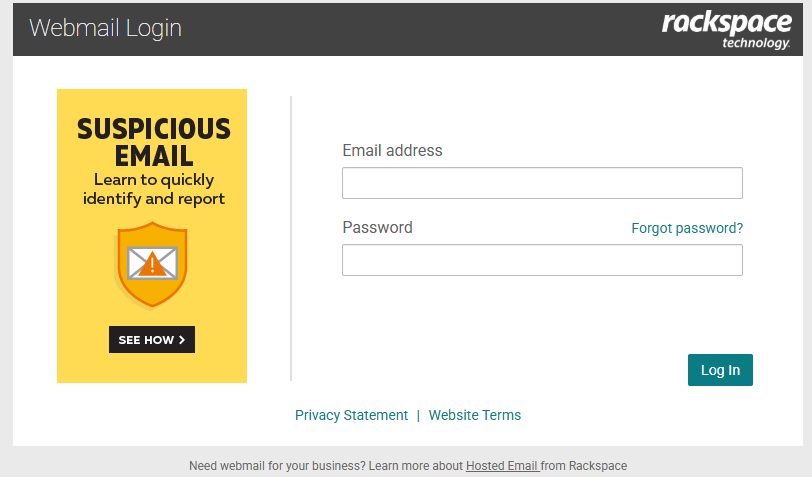
That webmail interface is the fastest path to access your email account, but it isn’t the only one. The same credentials work across any device, so you can sign in from a laptop at the office, a phone on the road, or a desktop at home. If the login fails, the issue is almost always a mistyped password or a browser caching an old session rather than a server fault.
Quick Login Checklist
- Confirm the full email address (including the part after the @) is correct
- Enter the current password exactly, watching for caps lock
- Clear the browser cache or try an incognito window if the page stalls
- Switch devices to rule out a local connection problem
What is Rackspace / What Does Rackspace Do?
Rackspace is a cloud-based email hosting service and a broader cloud computing company that runs managed hosting, storage, and infrastructure for enterprises of every size. Its email product gives small and medium-sized businesses (SMBs) a scalable, secure, and dependable way to handle email communications at a reasonable price.
The appeal comes down to offloaded effort. Rackspace’s cloud system removes the need to buy physical servers or wrestle with sophisticated setups, so teams skip the technical maintenance and focus on communication instead. The interface stays easy-to-use while the backend keeps its power, backed by robust support.
Beyond email, the company operates a much wider stack:
- Managed hosting that hands customers powerful servers and infrastructure resources for websites, applications, and online tools
- Cloud storage, databases, and analytics to store, manage, and analyse large amounts of data as organizations scale operations
- Hosting solutions spanning cloud hosting, VPS hosting, and dedicated hosting for more control, flexibility, and scalability over hosting environments
- File-level backups using compression and encryption for security
Rackspace also handles server configuration and maintenance behind the scenes, so the underlying technology never becomes the customer’s problem. In its enterprise work, teams of engineers integrate and operate a full stack, from private cloud to inference in production, staying accountable for outcomes. That same discipline, built on partners, models, and platform choices inside a governed system for regulated environments, is why compliance, data sovereignty, and uptime sit at the core of how it operationalizes real use cases and production systems.
Rackspace Email Access / Login Options
Rackspace gives users four email access options, letting each person match the method to their preferences, technical skills, and business requirements. The alternatives are webmail, a desktop email client, a mobile app, and manual IMAP or POP3 setup.
Each route trades convenience for depth differently. Webmail needs nothing but a web interface and an internet connection; a configured email application adds offline access and deeper customization options like organization tools, folders, filters, signature management, and integration with calendars and contacts. Mobile keeps you connected on smaller screens, while IMAP and POP3 govern how messages sync across several devices. The sections below break each one down.
Webmail
Webmail is the simplest way to access Rackspace email because it runs entirely in a web interface with no additional software to install. Any device with an internet connection works.
That makes it ideal for quick checks when you’re away from your main work devices or sitting at a machine without a configured email application. It’s the convenient, easy access option for anyone on the go who just needs to read or send a message fast.
Email Client
A desktop email client gives the most structured, feature-rich experience by connecting apps like Microsoft Outlook, Mozilla Thunderbird, or Apple Mail to your account. These clients add offline access so you can manage emails even without an internet connection.
They also unlock advanced organization tools: folders, filters, signature management, and tight integration with calendars and contacts. To make one work, you configure it with the correct incoming server settings and outgoing server settings, which the next sections list in full.
Mobile App
The Rackspace mobile app brings your account to any iOS or Android smartphone, keeping you connected wherever you are. It mirrors much of the desktop client but simplifies the interface for smaller screens.
Once configured, the setup process lets you manage emails, contacts, and calendars with a few taps. For business owners and teams who need immediate access while traveling or working remotely, it’s the most practical choice.
IMAP/POP3 Configuration
IMAP and POP3 decide how email clients and mobile devices handle your messages. IMAP keeps messages synced across several devices, so anything accessed or deleted on one device is reflected everywhere. POP3 instead downloads emails to a single device, which suits people who want offline access without synchronization.
The practical rule: choose IMAP if you check mail on more than one device, and reserve POP3 for a single dedicated machine.
Rackspace Email Server Settings
The core Rackspace server settings use secure.emailsrvr.com for both incoming and outgoing mail, with SSL/TLS encryption on every connection. These values apply across desktop email clients like Microsoft Outlook and Apple Mail.
| Setting | Server Address | Port | Encryption |
| IMAP (incoming) | secure.emailsrvr.com | 993 | TLS/SSL |
| SMTP (outgoing) | secure.emailsrvr.com | 465 (SSL) or 587 (TLS) | TLS/SSL |
Your username is always your full email address, paired with your Rackspace email account password.
IMAP configuration (recommended)
IMAP is the recommended incoming mail server configuration because it keeps every device in sync. Point the incoming mail server to the server address secure.emailsrvr.com, set the port to 993, and enable TLS/SSL encryption.
SMTP (Outgoing Mail Server)
SMTP handles outgoing mail through the server address secure.emailsrvr.com. Use port 465 for SSL or port 587 for TLS, keep encryption on, and sign in with your full email address as the username alongside your email account password.
Microsoft Outlook Setup (Windows/Mac)
Setting up Outlook means adding the account manually and entering Rackspace’s IMAP and SMTP details. Here is the sequence:
Step-By-Step Outlook Setup
- Open Outlook, go to the File tab, and select Add Account.
- Choose Manual configuration or additional server types, then click Next.
- Select POP or IMAP and click Next.
- Fill in the Account Settings window:
- Your name: how it should appear on outgoing emails
- Email address: your full email address (e.g., you@yourdomain.com)
- Account type: IMAP (preferred for cross-device synchronization)
- Incoming mail server: secure.emailsrvr.com
- Outgoing mail server (SMTP): secure.emailsrvr.com
- Username: your whole email address
- Password: your Rackspace email account password
- Under More Settings > Outgoing Server tab, tick “My outgoing server (SMTP) requires authentication.”
- On the Advanced tab, set the incoming server to port 993 with SSL and the outgoing server to port 465 (SSL) or 587 (TLS).
- Click OK, run Test Account Settings, then finish the configuration.
Apple Mail Configuration (Mac OS)
In Apple Mail, you add the account through the Mail menu and plug in Rackspace’s IMAP details. The steps are short:
- Open Apple Mail, click the Mail menu, and choose Add Account.
- Pick Other Mail Account and click Continue.
- Complete the fields for your name, email address, and password.
- Set the account type to IMAP.
- Enter the server configurations, using secure.emailsrvr.com for both the incoming mail server and the SMTP outgoing mail server.
- Click Sign In; Apple Mail applies your preferences, and a successful configuration displays your mailboxes (Inbox, Sent, and more).
- After saving modifications, send a test email to confirm it works.
iOS devices, including iPhones and iPads
On an iPhone or iPad, Rackspace email is added through the Settings app as an “Other” mail account. Walk through it like this:
- Open the Settings app.
- Go to Mail > Accounts > Add Account.
- Choose Other, then Add Mail Account.
- Enter your name, email address, password, and an account description such as “Work Email.”
- For both the incoming mail server and outgoing email server, set the host name to secure.emailsrvr.com, use your full email address as the username, and enter your Rackspace email password.
- Save settings, then test by sending and receiving emails.
Android Setup
On Android, the built-in Email app adds a Rackspace account as an IMAP account. The process is quick:
- Open your Email app.
- Go to Settings > Add Account > IMAP.
- Enter your email address and password, then tap Next.
- Enter the incoming server settings and outgoing server settings:
- Incoming (IMAP): secure.emailsrvr.com, port 993 with SSL/TLS
- Outgoing (SMTP): secure.emailsrvr.com, port 465 (SSL) or 587 (TLS)
- Save settings and test the configuration by sending and receiving a test email.
Testing Your Configuration
After setup on any desktop or mobile client, a quick test confirms everything works correctly before you rely on it. Run three checks:
- Send a test email from the account to verify messages are sent and received
- Check folder synchronization so folders like Inbox, Sent, and Drafts are syncing across devices
- Verify calendar and contacts if contact syncing or shared calendars are enabled, confirming they sync as expected
Step 5: Optional Add-Ons (Archiving, Shared Calendars, etc.)
Rackspace Email Plus adds optional add-ons like email archiving and shared calendars for teams that need deeper retention and collaboration. Enable and configure these once the core account is live.
Email Archiving: Archive both incoming and outgoing emails to keep a complete record of communications. You can set retention policies, store archived emails in the cloud, and use eDiscovery tools to retrieve them for compliance or legal reasons.
Shared Calendars: Let a team collaborate by syncing calendar settings across devices so schedules stay accessible inside the email client.
Email Archiving
Email archiving captures every incoming and outgoing email to preserve a complete record of communications. Through retention policies, archived emails sit safely in the cloud, and eDiscovery tools let administrators retrieve them whenever compliance or legal reasons demand it.
Shared Calendars
Shared calendars, part of Rackspace Email Plus, let a team collaborate by keeping calendar settings synchronized across devices. Everyone stays on the same schedule, accessible directly inside the email client.
Step 6: Troubleshooting
Most Rackspace email login and setup difficulties trace back to a handful of fixable causes. Work through them in order:
- Check email settings for mistakes in server addresses or ports
- Confirm internet connectivity so the device has an active internet connection
- Re-enter the password, especially if you recently changed it, and make sure it’s typed correctly in the email client
- Contact customer service for any technical concerns that persist, since support is available around the clock
The key insight: a password that worked yesterday but fails today usually means it was changed and the client still holds the old one.
Rackspace Features and Benefits
Rackspace Email’s main benefits are a personalized email address, improved security, anywhere access, collaborative tools, and cost-effective pricing. Together they give businesses a professional image without enterprise-level overhead.
Personalized Email Address
A personalized email address lets businesses create unique email addresses on their own domain, strengthening professionalism and brand identity. Every email sent reinforces company branding to clients, partners, and customers, building the professional image, confidence, and trustworthiness that generic free accounts can’t match.
Improved Security
Improved security is a top priority, with built-in protection against spam, viruses, and other online threats. Filtering technologies block unsolicited emails and malware to keep inboxes secure and clean, lowering the risk of cyberattacks and data breaches that threaten important corporate communications.
Anywhere Access
Anywhere access lets customers reach their emails from any internet connection. Employees open their accounts through a web browser at the office, while working remotely, or traveling, giving dispersed teams and mobile workforces the flexibility to stay connected and responsive.
Collaborative Tools
Collaborative tools like shared calendars and shared contacts drive effective collaboration. Teams handle scheduling, meetings, and events together while client information and partner information stay accessible to everyone, smoothing communication across an organized workplace.
Cost-Effective Solutions
Cost-effective solutions make Rackspace an appealing choice for organizations watching the bottom line. Affordable pricing paired with strong functionality and reliable customer service gives SMBs and small enterprises enterprise-level email services through a pricing structure that respects the budget.
What Happened to Rackspace?
On 2 December 2022, Rackspace’s Microsoft Exchange server was hit by a cyberattack from the PLAY cybercrime gang. The targeted, sophisticated attack exploited vulnerabilities in the Microsoft Exchange environment, affecting more than 30,000 users’ email accounts and blocking access to emails and historical data for weeks.
Rackspace took the environment offline, and while many customers regained access, it chose not to restore the Exchange environment. Instead, affected users were set to migrate to the more secure Microsoft 365 service. Many customers, largely small businesses, were frustrated by the response, which stressed the limited scope and the technicalities of the vulnerability. The practical takeaway: the incident pushed Rackspace toward a more resilient, cloud-native mail platform.
Rackspace vs AWS

Rackspace and Amazon Web Services (AWS) both compete in cloud computing, but AWS is broader. Rackspace centers on virtual servers, storage, and managed services, while AWS layers on infrastructure offerings through EC2 and serverless computing.
| Factor | Rackspace | AWS |
| Core focus | Managed services, storage, virtual servers | Full infrastructure + serverless |
| Server setup | Managed provisioning | Amazon Machine Image (AMI), AWS Lambda |
| Dashboard | Fewer data centres, less intuitive | User-friendly dashboard, more services |
| Access control | Role-Based Access Control (RBAC) via Cloud Monitoring | Identity and Access Management (IAM) |
| Monitoring | Rackspace Cloud Monitoring (more complicated) | CloudWatch |
On the security front, AWS edges ahead: IAM manages security controls during a breach and CloudWatch handles monitoring services, whereas Rackspace’s access restrictions through RBAC and cloud monitoring are more complicated to operate. Rackspace’s counterweight is hands-on managed support.
Rackspace Company Snapshot
Rackspace brings 25+ years of experience operating mission-critical infrastructure. That depth shows in 2,200+ certified technical experts, 10,000+ technical certifications, 600+ AI platform certifications, and 39 data centers globally.
Steps For Setting Up Rackspace email
Setting up Rackspace email means choosing a platform, then configuring settings for it. Whether you use a desktop email client like Outlook, a mobile device, or the webmail interface, this step-by-step guide covers configuration across multiple platforms.
Step 1: Access your Rackspace email account.
Access your email account through the webmail interface first. Open a web browser, go to email.rackspace.com, enter your full email address as the username and your password, then sign in to reach your inbox, calendar, and email capabilities.
Step 2: Configuring Rackspace Email on a Desktop Email Client.
To configure a desktop email client such as Microsoft Outlook or Apple Mail, customize it with Rackspace’s IMAP configuration. Set the incoming mail server address to secure.emailsrvr.com on port 993 with TLS/SSL encryption, and the SMTP outgoing mail server to the same address on port 465 or 587. Use your full email address as the username with your email account password.
Step-by-Step Guide for Configuring Popular Email Clients
Configuring popular email clients like Microsoft Outlook and Apple Mail follows the same core logic: enter the account settings, apply the server settings, enable authentication, confirm the configuration, and send a test email to verify it works.
Step 3: Configuring Rackspace Email on a Mobile Device
On a mobile device — iPhone, iPad, or Android smartphone — Rackspace email follows a simple setup when you follow the appropriate steps, entering the same secure.emailsrvr.com server details used elsewhere.
Step 4: Testing Your Configuration
Testing the configuration confirms it works correctly. Send a test email, check folder synchronization so folders like Inbox, Sent, and Drafts are syncing across devices, and verify calendar and contacts sync as expected.
Step 5: Optional Add-Ons (Archiving, Shared Calendars, etc.)
Optional add-ons such as archiving and shared calendars come with Email Plus. Email archiving keeps a complete record through retention policies, storing archived emails in the cloud with eDiscovery tools for compliance or legal reasons. Shared calendar settings stay synchronized across devices and accessible inside the client.
Step 6: Troubleshooting
For troubleshooting difficulties, check email settings and server settings for mistakes, confirm internet connectivity with an active internet connection, re-enter a recently changed password typed correctly in the email client, and contact customer service for lingering technical concerns.
Conclusion
Setting up Rackspace email is an easy, efficient method to manage email demands. By following the process to create an account, configure account settings, set up DNS records, and access email on any device, users can resolve most problems quickly, with customer service on hand when needed.
FAQs
How Does Rackspace Email Work?
Rackspace Email works as a cloud-based email hosting service that gives enterprises and small and medium-sized businesses (SMBs) a scalable, secure, and dependable way to manage email communications at a reasonable price. Because the cloud system replaces physical servers and sophisticated setups, teams skip the technical maintenance and keep communication simple, pairing an easy-to-use interface with real power and robust support.
How Does Rackspace Email Work? – Key Features of Rackspace Email
The key features are a personalized email address, improved security, anywhere access, collaborative tools, and cost-effective solutions — the five pillars that make the service practical for everyday business use.
Why Choose These Options?
The right method for accessing email depends on how you work and what you prioritize. Webmail is quick and convenient for occasional use when you’re on the go. Email clients bring robust features and organization tools, ideal for larger volumes of emails or offline capabilities. Mobile apps add convenience anywhere, while IMAP and POP3 support deliver flexibility across devices and platforms, keeping a whole team connected and productive.